GraphChat
GraphChat is a natural language querying tool integrated into Memgraph Lab, designed to transform how users interact with graph databases. It caters to both non-technical users and advanced developers.
By using Large Language Models (LLMs), such as OpenAI’s GPT-5, GraphChat selects one of the available tools to query your graph, retrieve storage info, and run built-in algorithms like PageRank, delivering precise and actionable results.
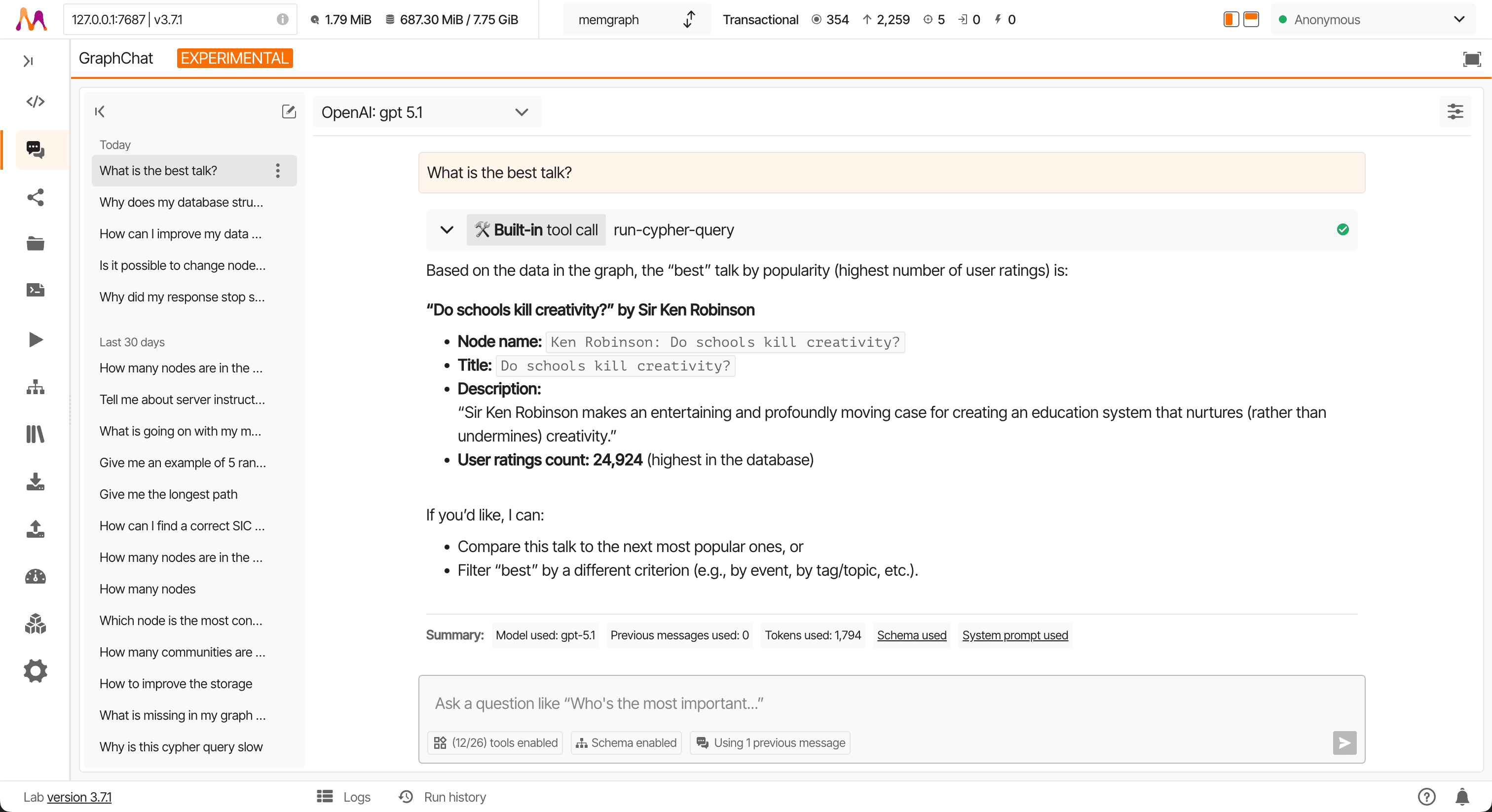
How it works
Using GraphChat involves five key steps:
-
Establish an LLM connection: Set up a connection by choosing an LLM provider, selecting a model, and configuring authentication and usage settings. Each connection includes details like the endpoint, headers, retry logic, and model configurations.
-
Add MCP connections (optional): Register remote MCP server connections in the Lab so GraphChat can use tools, prompts, resources, instructions, elicitations, and samplings from those MCP servers to get additional context.
-
Register skills (optional): Add skills from a remote URL, a local file, or create new ones within Lab, and then attach them to the agent.
-
Create an agent: Create an agent that uses any of the created LLM models and any number of registered MCP servers. You can also edit how the agent works and behaves, along with some constraints and permissions.
-
Start chatting: Once connected, open the chat interface. You can create multiple threads to organize conversations by topic, question type, or agent comparison. Each question - answer pair is stored as an exchange, which can be reused as context in future prompts.
-
Let GraphChat handle the rest: The GraphChat agent handles the agentic workflow by combining a Memgraph connection, LLM model, built-in tools, skills, and external MCP server capabilities to get the best answer for your question. You can inspect all the steps that led to the final answer.
From Memgraph 2.16, GraphChat doesn’t require MAGE to be installed. For schema
information, GraphChat uses the SHOW SCHEMA INFO
query if available. If the SHOW SCHEMA INFO query is not enabled, it will try using the schema-related
procedures. If none of the above
works, it will run Cypher queries.
Setting up an LLM connection
Before using GraphChat, you must have data stored in Memgraph, and you need to configure at least one LLM connection. Each connection is defined by:
- Provider configuration
- Model configuration - controls how the model responds
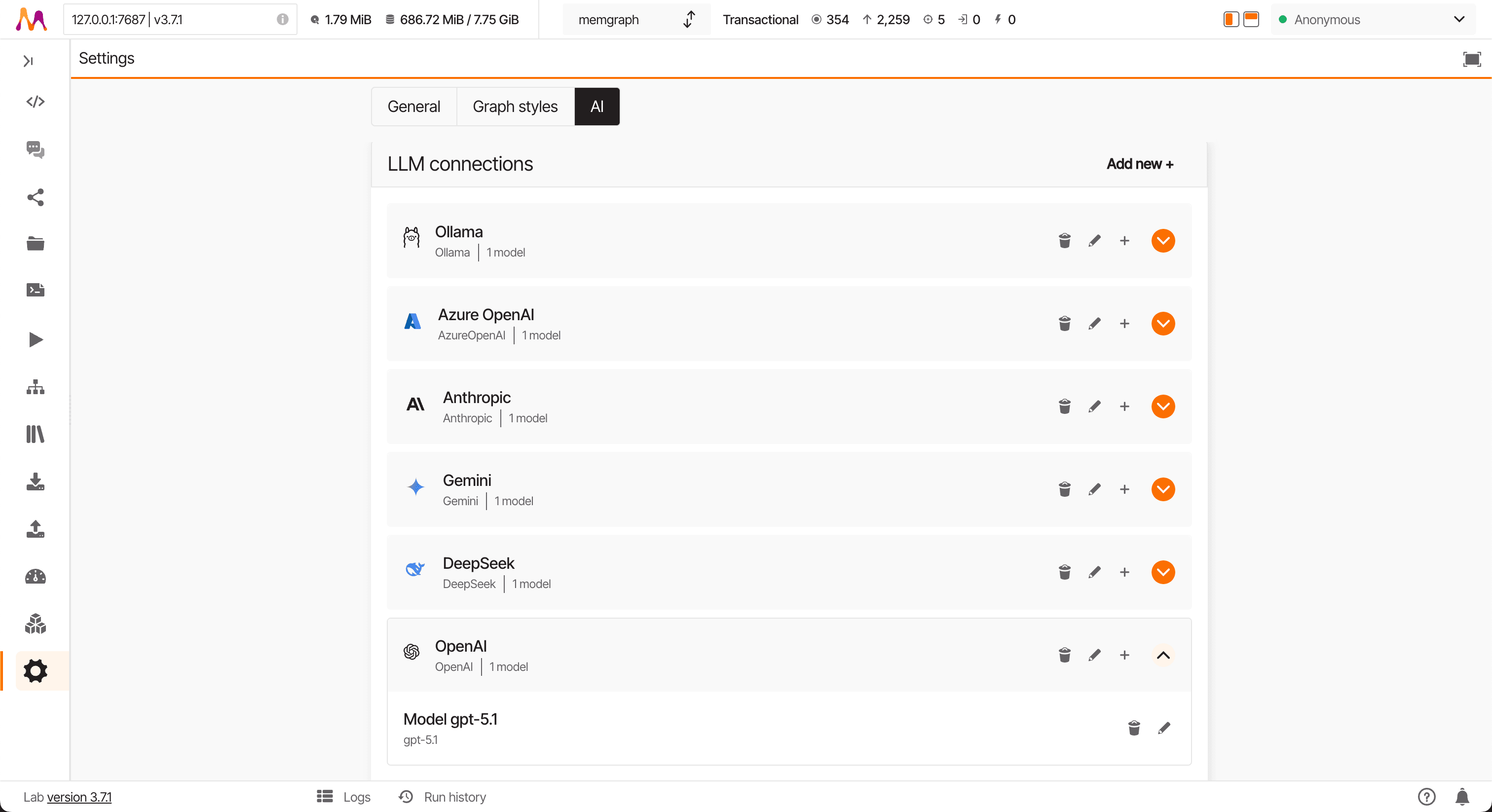
Providers
GraphChat supports connections to the following providers:
- Ollama - Requires a locally deployed Ollama model
- OpenAI
- Azure OpenAI - Requires an Azure OpenAI Service account
- DeepSeek
- Anthropic
- Gemini
Ollama
For local LLM model setup, you can use Ollama by setting up:
- Local endpoint URL, such as
http://localhost:11434. - Optional custom headers with each request.
If you are having issues connecting to Ollama, try using host.docker.internal
instead of localhost or 127.0.0.1. Additional settings may be required if
you are using
Docker
or Docker Compose to run
Memgraph and Memgraph Lab.
Learn more about Ollama and how to set it up for local LLM model use:
Ensure you follow the appropriate guidelines and documentation when setting up these connections to take full advantage of the GraphChat capabilities within Memgraph Lab.
OpenAI
Use OpenAI’s models for processing natural language queries. Set up a connection to OpenAI with:
- Valid OpenAI API key.
- Optional proxy endpoint.
- Optional custom headers with each request.
Azure OpenAI
Once you have a model deployment created and ready on Azure OpenAI, you can set up an LLM connection to Azure OpenAI by providing:
- Azure OpenAI service version.
- Azure OpenAI API key.
- Deployment endpoint.
- Deployment name.
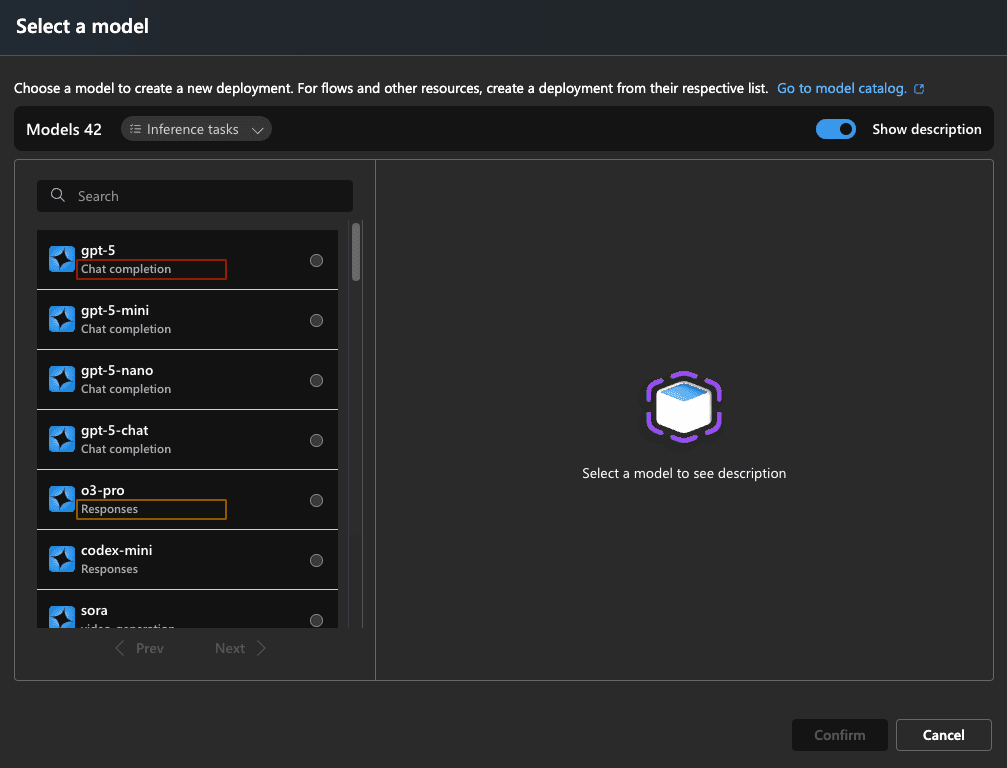
- API mode, which can be
Responses(new API) orChat completions(old API). When you deploy a model to Azure OpenAI, you can see next to your model if it supports the Responses or Chat completions API. - Optional proxy endpoint.
- Optional custom headers with each request.
DeepSeek
Set up a connection to DeepSeek with:
- Valid DeepSeek API key.
- Optional proxy endpoint.
- Optional custom headers with each request.
Anthropic
Set up a connection to Anthropic models with:
- Valid Anthropic API key.
- Optional proxy endpoint.
- Optional custom headers with each request.
Gemini
Set up a connection to Google Gemini models with:
- Valid Gemini API key.
- Optional proxy endpoint.
- Optional custom headers with each request.
Model configuration
You can connect to the same provider multiple times using different models, depending on your specific use case.
You can fine-tune how each model behaves by adjusting the following configuration parameters from the chat interface or in the Lab Settings:
- Temperature
- Max tokens
- TopP
- Frequency penalty
- Presence penalty
Some LLM providers or modes (for example, certain models using the Responses API) do not support all configuration parameters such as Temperature or TopP. In these cases, you can remove (unset) these parameters in the model configuration.
If you try to set a parameter that isn’t supported for your model, you’ll see an error message when you attempt to create the model configuration.
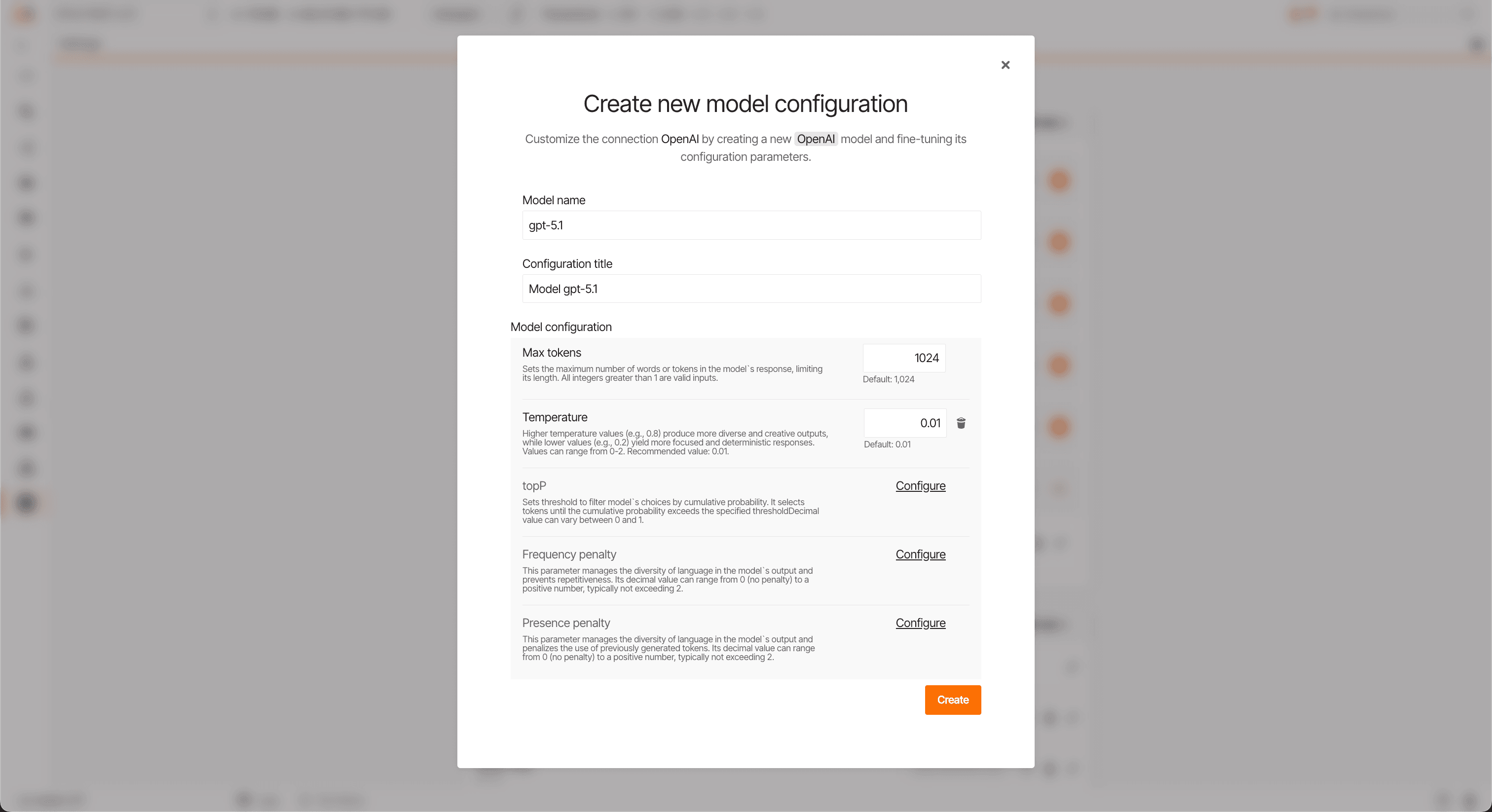
You can also create multiple configurations for the same model to suit different use cases.
Create an agent
GraphChat agent combines all the following configured items into a single agentic workflow:
- LLM model
- Memgraph Lab built-in tools
- Memgraph Lab custom Cypher-backed tools
- Remote MCP server connections
- Skills
- Agent configuration
You can create multiple agents and change them in the GraphChat interface. For each agent, you can edit additional settings.
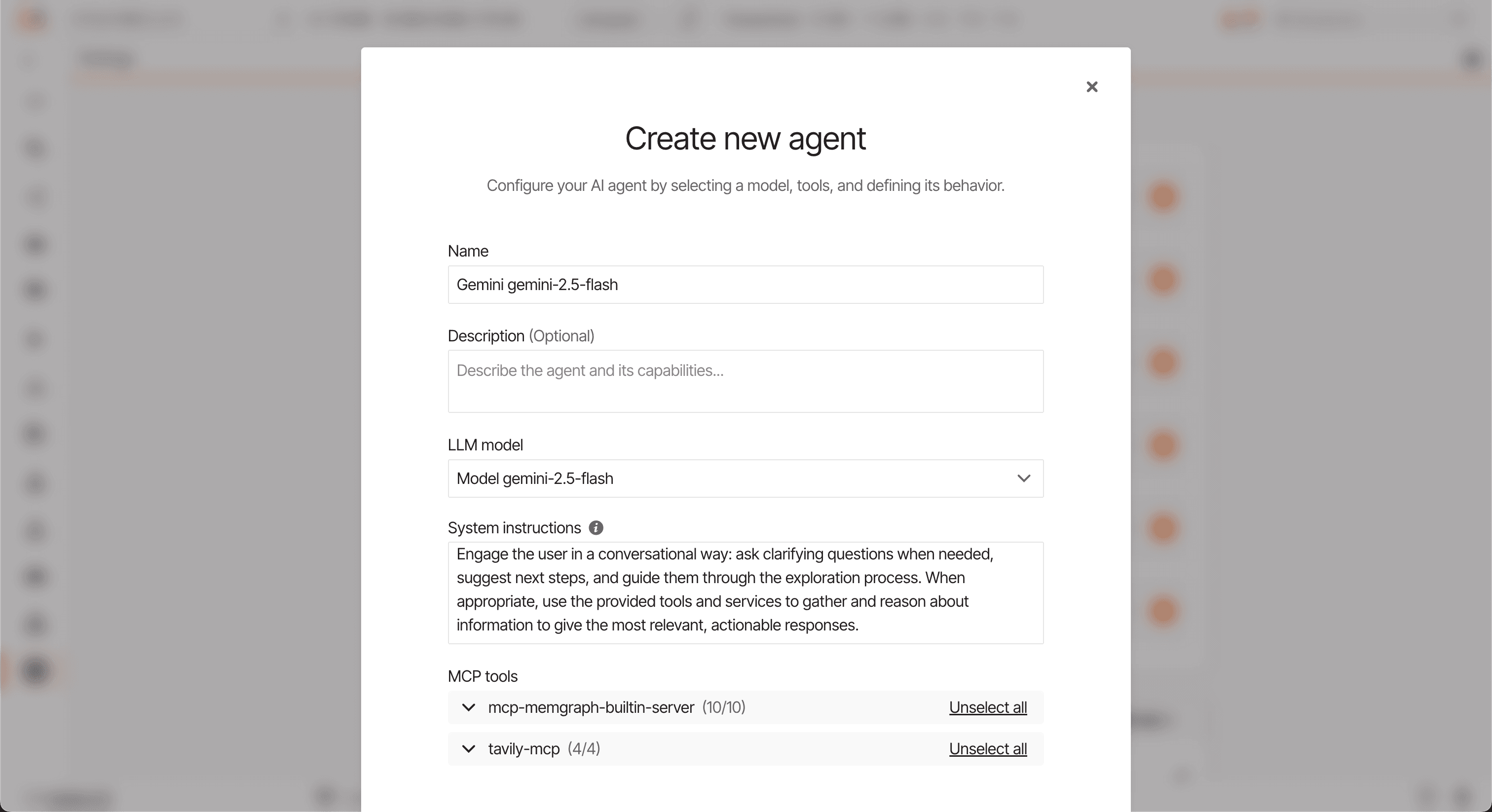
Additional settings allow for more control:
- Max previous messages – Limit how many prior messages GraphChat includes in each prompt to provide context-aware responses. Including more history can improve continuity, but may increase response costs.
- Max iterations – Limit how many iterations the agent can perform when answering a question. More iterations allow deeper problem-solving but may increase latency and usage costs.
- System instructions – Define the assistant’s role, tone, and behavior. These instructions are always included at the start of the prompt.
- System additional context – Select predefined modules (graph schema, Cypher query specifics, various constraints) to enrich the assistant’s context. These are appended to the system instructions.
- Memgraph permissions - Limit the changes GraphChat can make to your Memgraph database.
Chat interface
GraphChat lets you create multiple threads to keep conversations organized—whether you’re exploring different topics or comparing results from various agents.
Each question–answer pair is called an exchange. GraphChat can include previous exchanges in the prompt context to make responses more relevant. You have control over how that context is built:
- Default: The last five messages are included automatically.
- Customizable: In the agent configuration, you can adjust the number of previous exchanges or manually exclude specific ones.
When asking a question, GraphChat shows how many previous exchanges will be used. To adjust this, update the max previous exchanges parameter in the model configuration.
Coming soon: You’ll be able to manually select or deselect specific previous exchanges directly from the conversation view for even more customization.
To generate responses, GraphChat leverages:
- Prompt context - GraphChat constructs a detailed prompt that defines the assistant’s role, tone, and permissions, optionally including schema and Cypher-specific guidance to ensure accurate and context-aware responses.
- Tools - A collection of built-in and custom Cypher-backed tools that let the LLM query data, analyze graphs, and interact directly with the Memgraph database.
- MCP servers - External tool integrations that expand GraphChat’s capabilities by connecting to third-party or custom MCP servers through configurable connections.
- Skills - Connected skills that are accessible to the LLM, allowing it to retrieve full skill content or references to enrich its context and responses.
- Exploring exchanges - Lets you inspect the LLM’s reasoning process, view which tools were used, and examine the full context and schema involved in generating each response, giving you deeper insight into the LLM’s reasoning process.
Prompt context
When you ask a question, GraphChat constructs a prompt context for the LLM that includes:
- Introduction - Define the assistant’s role, tone, and behavior. These instructions are always included at the start of the prompt. You can edit the default settings by adding new rules or completely redefining the role, tone, and behavior of the assistant.
- Graph schema (Optional) - If selected, Lab ensures that each LLM interaction has access to the graph schema. Without it, the LLM will attempt to infer the schema on its own.
- Query permissions (Optional) - If enabled, Lab updates the prompt context with query constraints, specifying whether the assistant can read, update, insert, and/or delete data in Memgraph.
- Cypher-specific notes (Optional) - Provides rules and guidance where Memgraph’s Cypher syntax differs from other Cypher-based databases.
- MCP instructions (Optional) - If the connected MCP server provides instructions for the model, these will also be included in the prompt context.
- Skills (Optional) – If there are skills connected to an agent, the initial prompt will include the skill name and description, along with guidance on how to load the full skill and its references into the context.
Note: Large graph schemas can consume significant tokens in the LLM’s context window. In such cases, consider disabling automatic inclusion of the graph schema to optimize cost and performance.
Tools
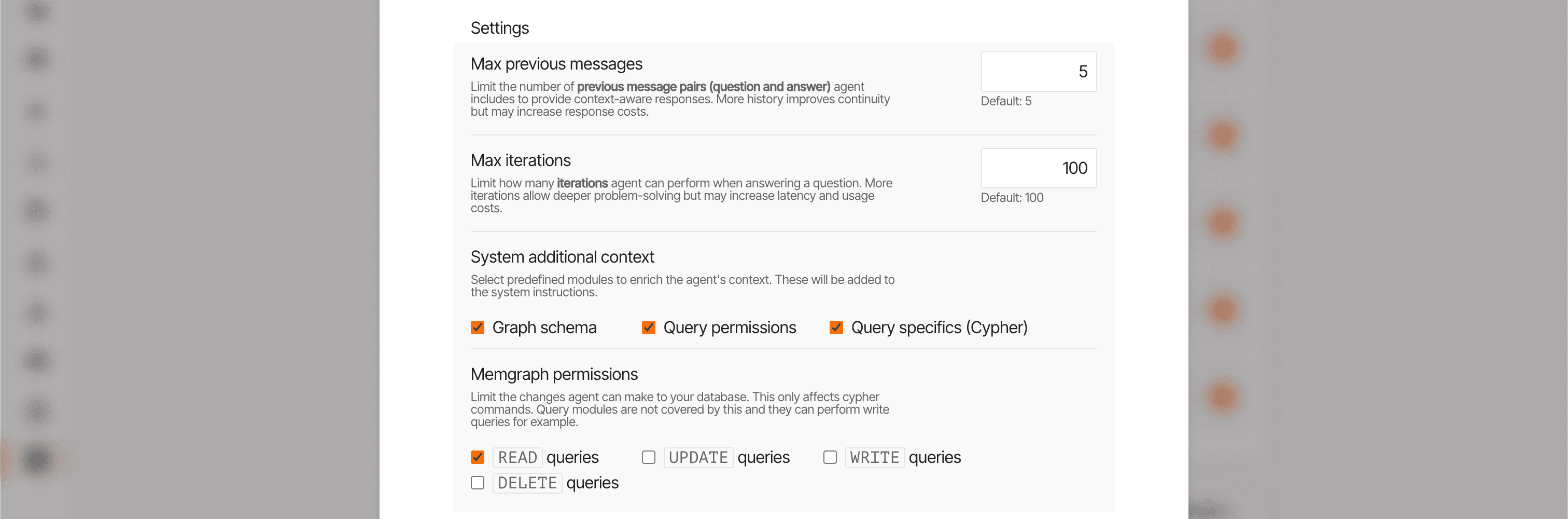
GraphChat includes a set of built-in tools and supports creating custom Cypher-backed tools.
Built-in tools
Built-in tools cover a variety of tasks such as querying data, retrieving database information, running graph algorithms, checking indexes, managing triggers, and more:
run-cypher-query: Generate and execute a Cypher query.run-page-rank: Identify the most connected and impactful node using PageRank.run-betweenness-centrality: Determine which nodes serve as critical bridges in the graph.show-config: List all Memgraph database configuration parameters.show-schema-info: Display the full database schema (requires--schema-info-enabledflag on startup).show-storage-info: View memory usage, available memory, disk usage, and counts of nodes and relationships.show-indexes: List all database indexes.show-constraints: List all defined constraints.show-triggers: List all active triggers.
Tool usage before Lab 3.3
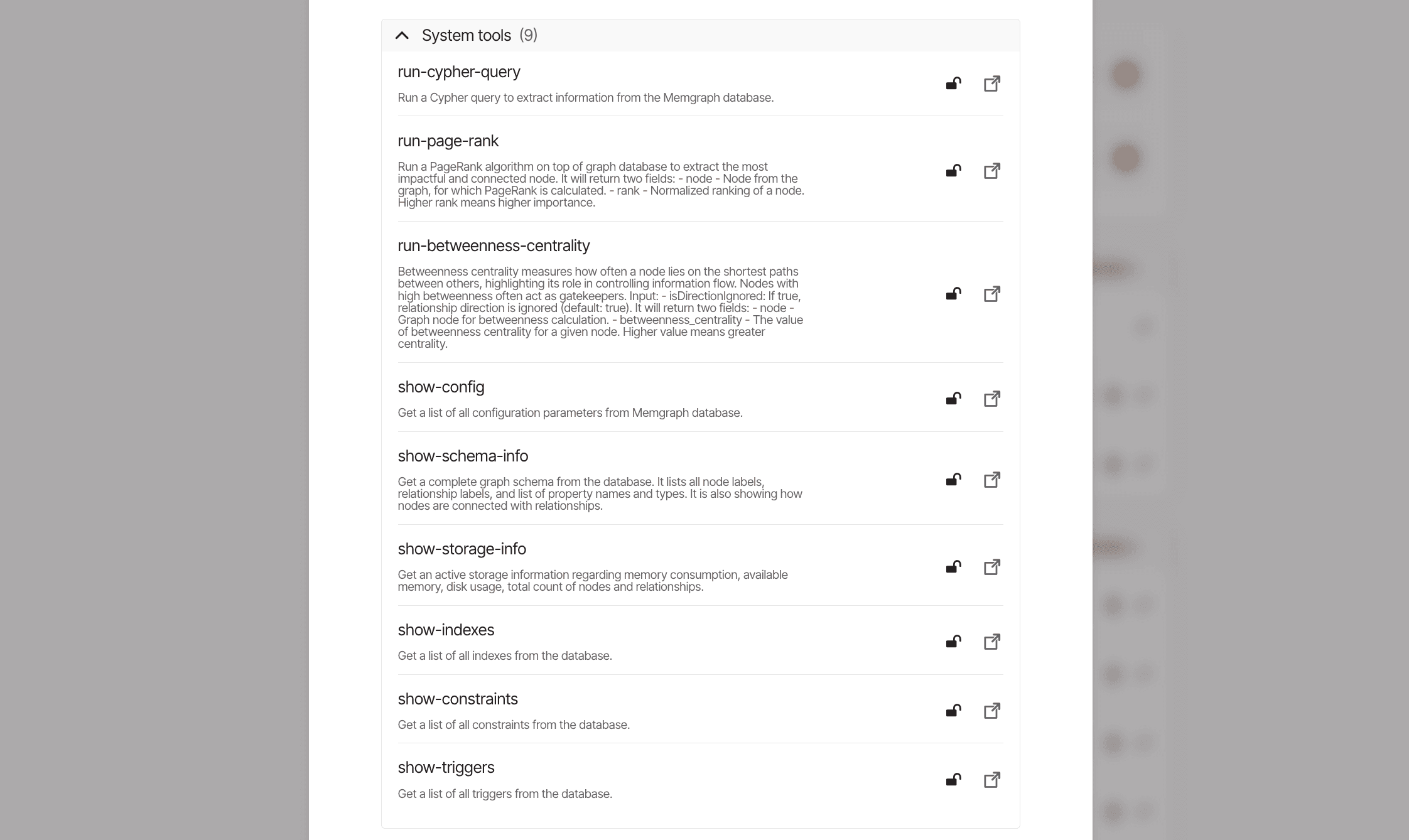
In earlier versions, GraphChat only used the run-cypher-query tool.
This tool generates and runs Cypher queries from LLM prompts.
If you want to replicate this behavior, disable all other tools in the agent configuration.
Cypher-backed tool
From Lab 3.3 onward, you can also define your own custom tools by providing:
- A tool name
- A description
- A parameterized Cypher query to execute on call
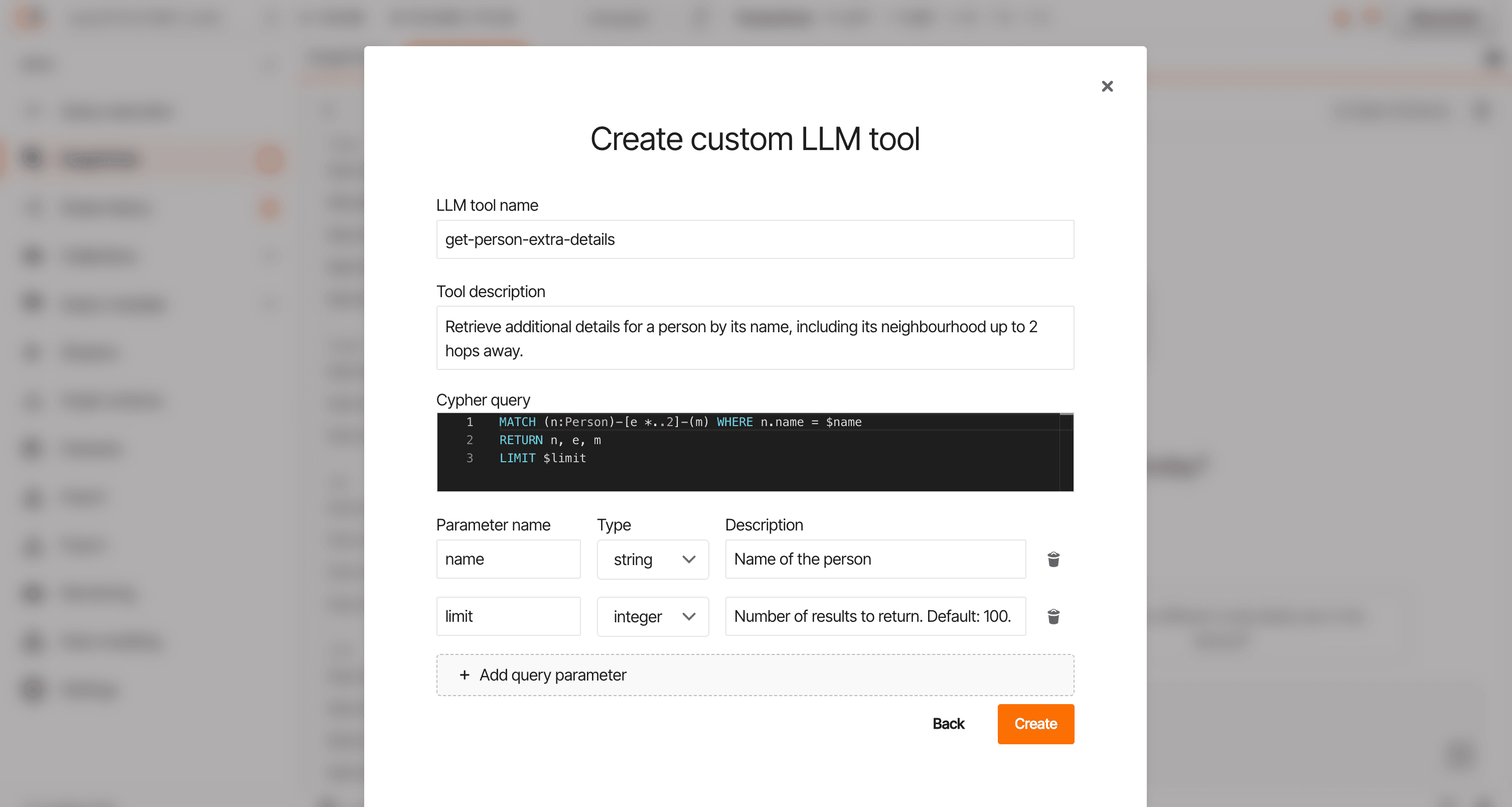
Make sure each custom tool has a unique name and clear description so the LLM can accurately select the appropriate tool when responding.
MCP servers
Starting with Lab 3.6, you can integrate tools from MCP servers, where Lab acts as an MCP client. This greatly expands the capabilities of the assistant in GraphChat, allowing it to leverage external tools beyond the built-in and custom ones.
GraphChat MCP integration supports:
- Tools
- Elicitations
- Sampling
- Instructions
- Prompts
- Resources
Elicitation, sampling and instructions are supported from Lab 3.7.
With Lab 3.7.1, GraphChat agents can handle elicitation and sampling requests from the registered MCP servers. Agents will also use any MCP instructions provided by the server. These instructions can guide the agent’s behavior or responses and are incorporated automatically whenever agent tools from an MCP server are active.
Prompts and resources are supported from Lab 3.8.
Starting with Lab 3.8.0, GraphChat displays available prompts and resources from connected MCP servers, enabling you to incorporate them into your agentic workflows.
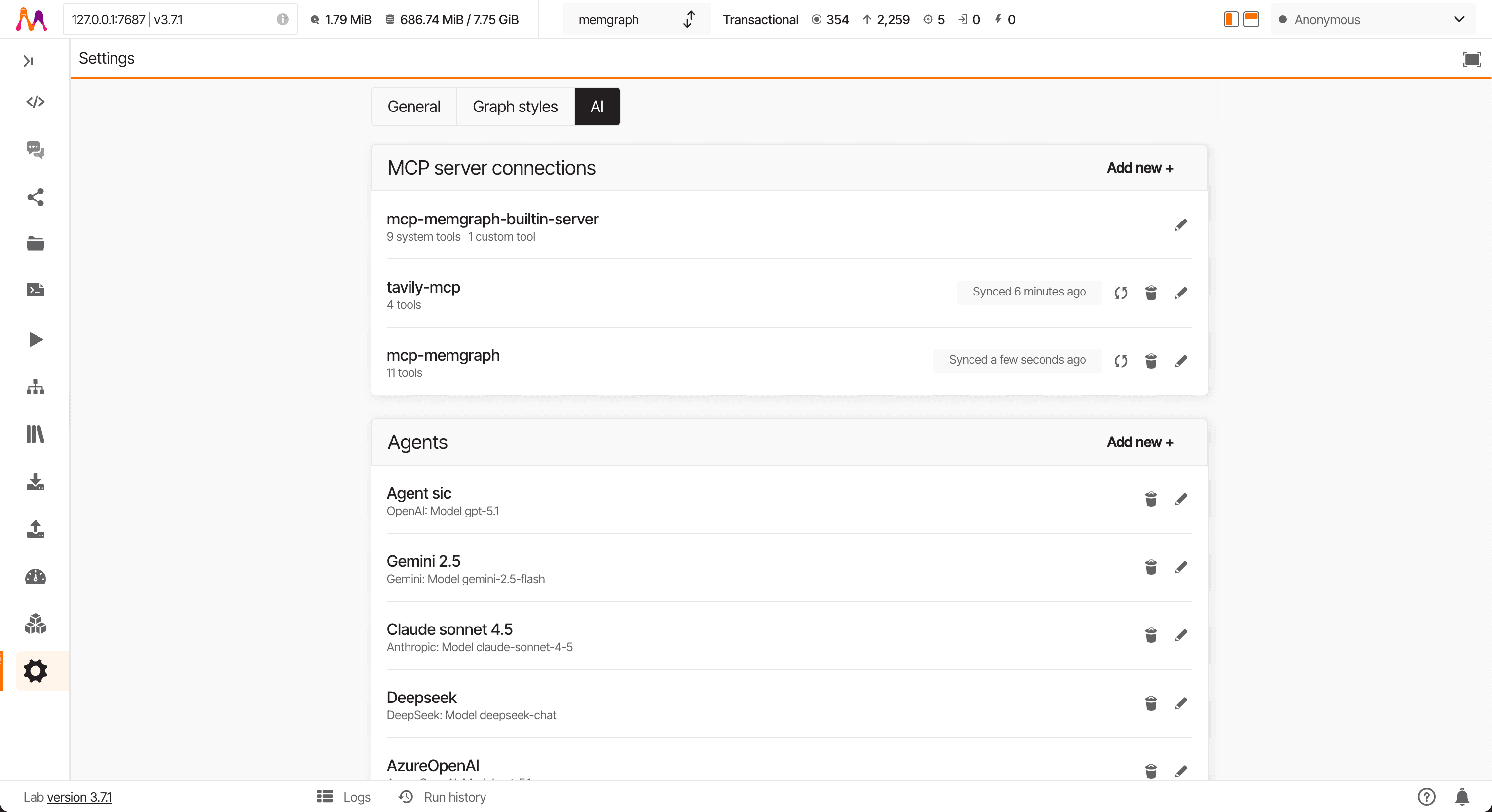
Setting up the connection
In Settings/LLM tab, you can create and manage MCP connections. Lab currently supports streamable HTTP and SSE transport layers. To set up a connection:
- Enter the URL where your MCP server is listening.
- Select the Transport type (default is
Streamable HTTP). - (Optional) Add an access token - it will be sent as an Authorization header.
- (Optional) Add any custom headers required by your MCP server.
Upon a successful connection, Lab retrieves MCP instructions and a list of tools provided by the MCP server.
Managing MCP tools in GraphChat
In the agent configuration you can then select which of these tools you want to enable in GraphChat.
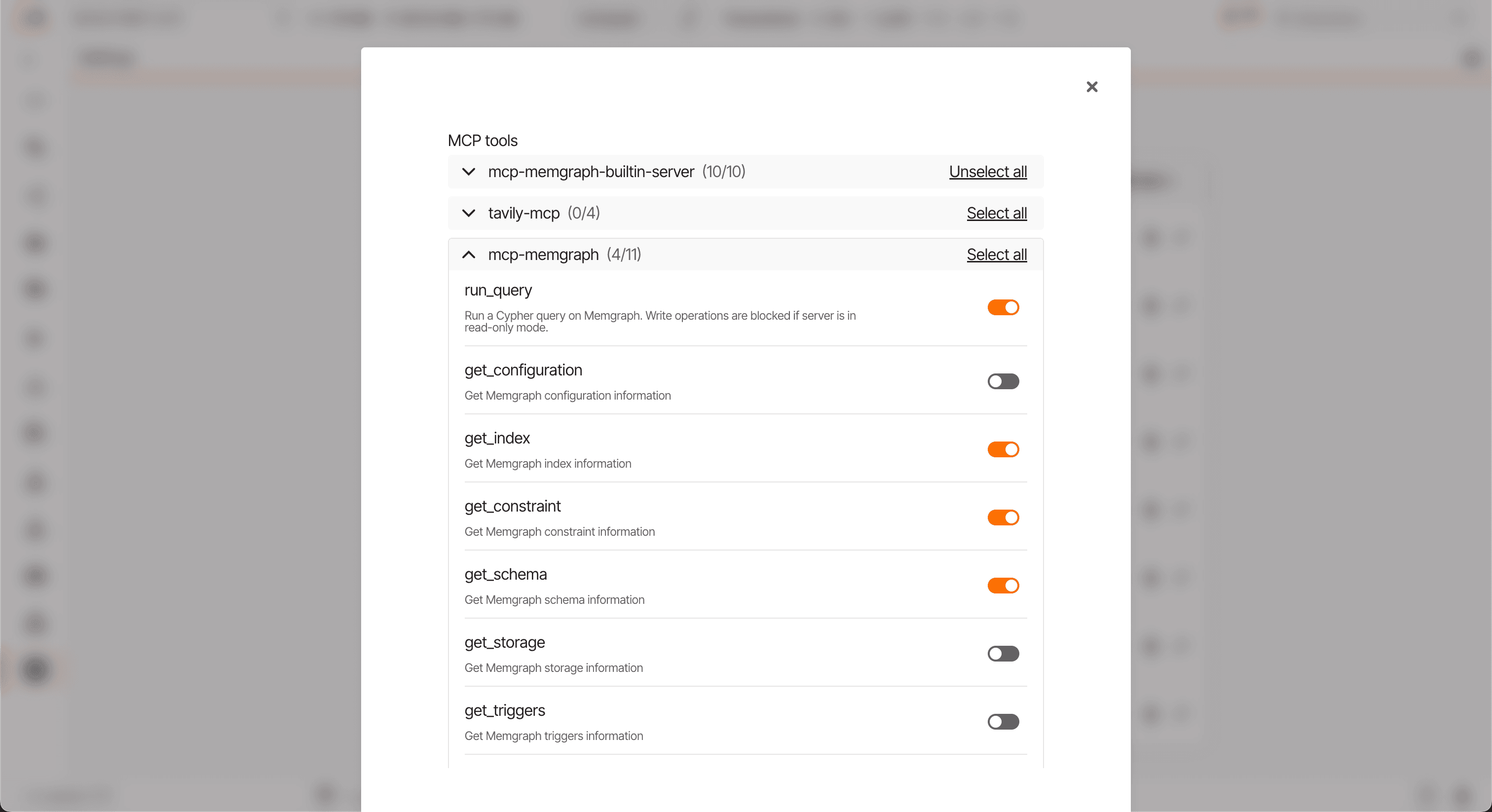
You can choose which tools to enable for the current agent conversation. Additionally, you can quickly enable or disable all tools from a specific MCP server with a single action - making it easy to tailor the toolset to your workflow.
GraphChat automatically resyncs tools and MCP connections each time you open a new GraphChat view. If there’s an issue with a connection, the affected tools will be unavailable, and you’ll see the error response that explains why the connection failed - helping you troubleshoot and resolve the issue.
Examples
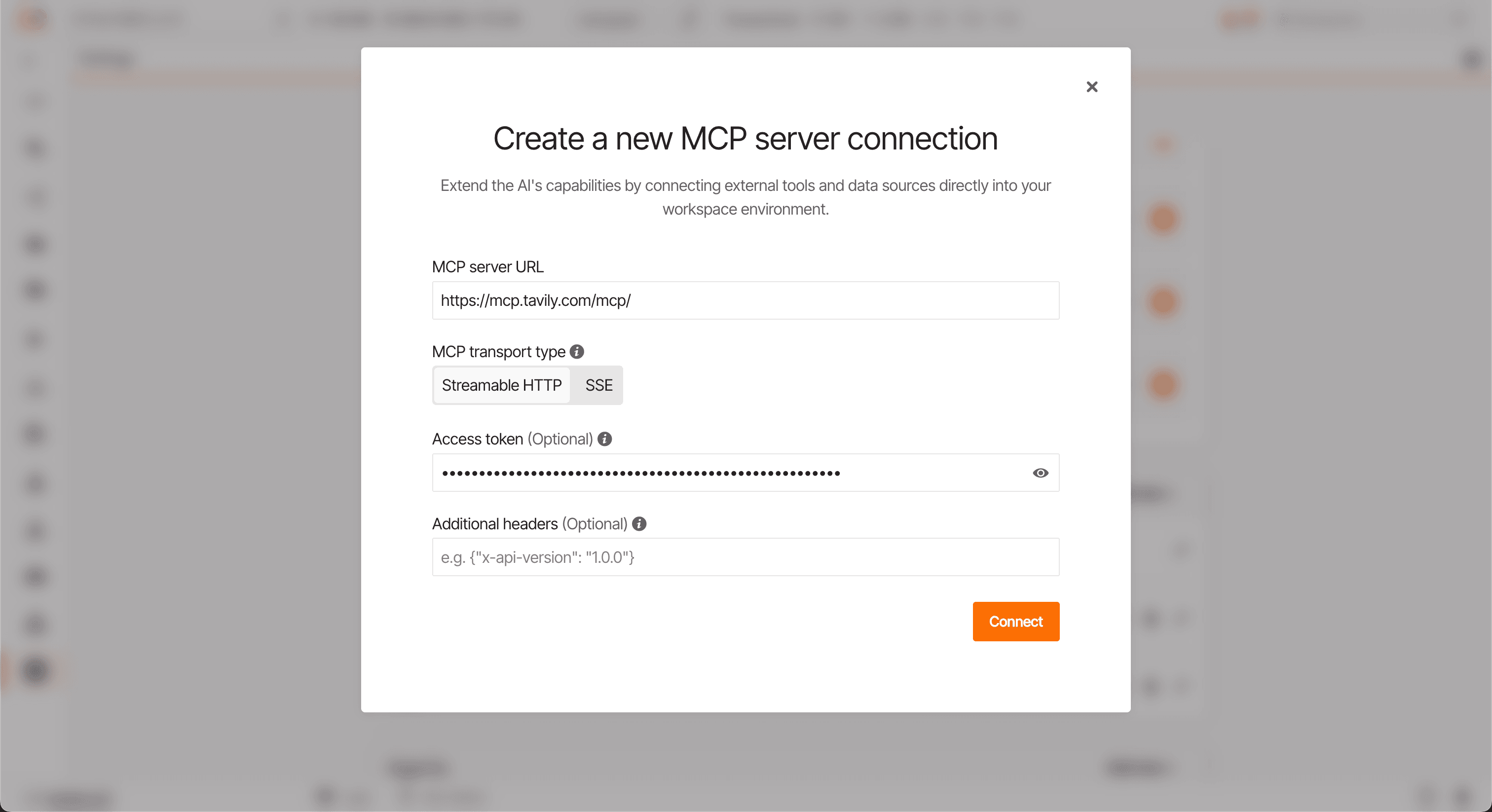
Tavily Integration:
- Enter
https://mcp.tavily.com/mcp/in the URL field. - Select
Streamable HTTPfor the transport type. - Register on Tavily to obtain an access token and add it in the Access Token field.
Memgraph MCP Integration:
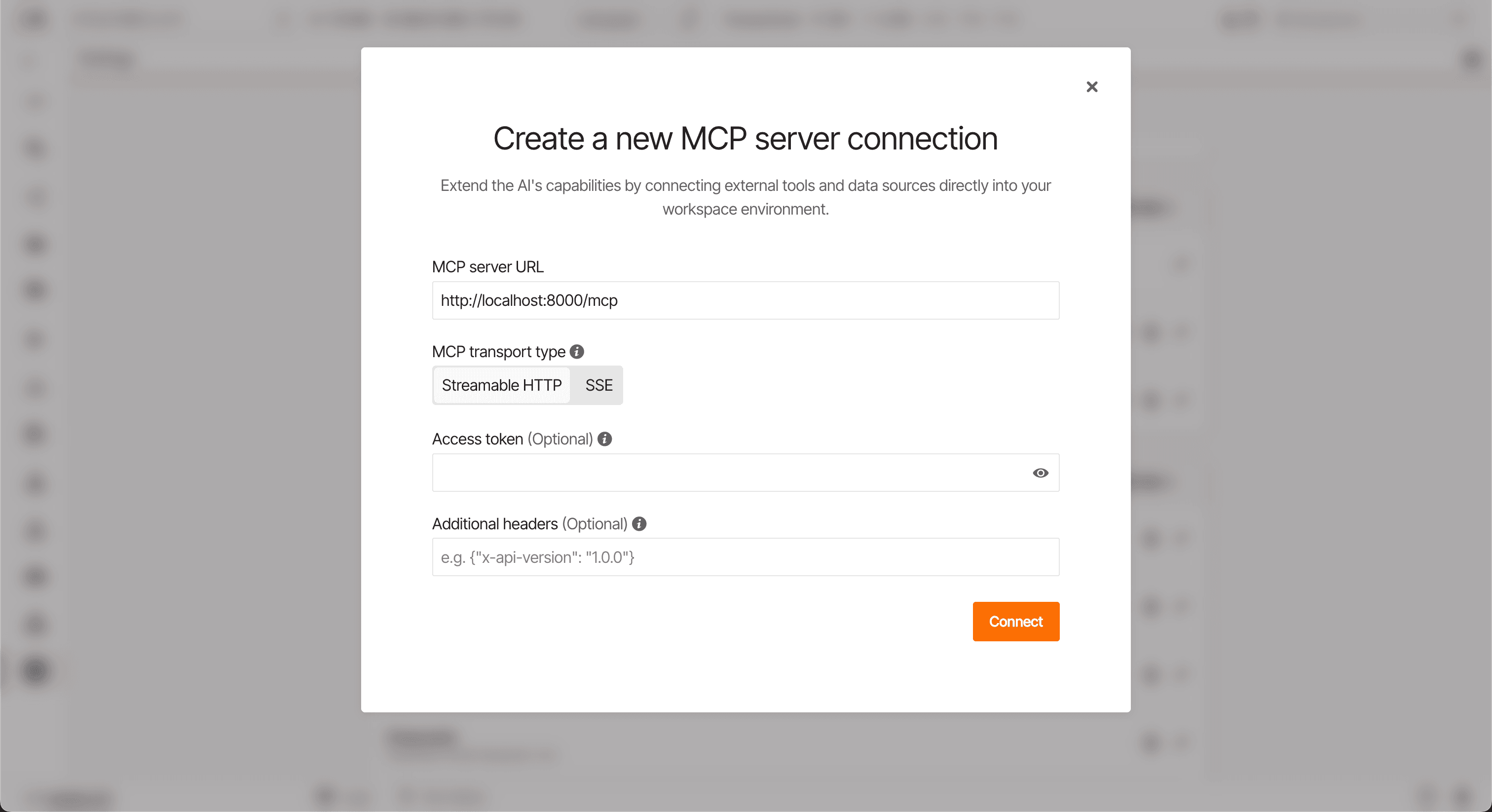
- Pull the ai-toolkit/memgraph repository.
- Build the provided Dockerfile to start the MCP server.
- Enter
https://localhost:8000/mcp/in the URL field. - Select
Streamable HTTPfor the transport type.
Skills
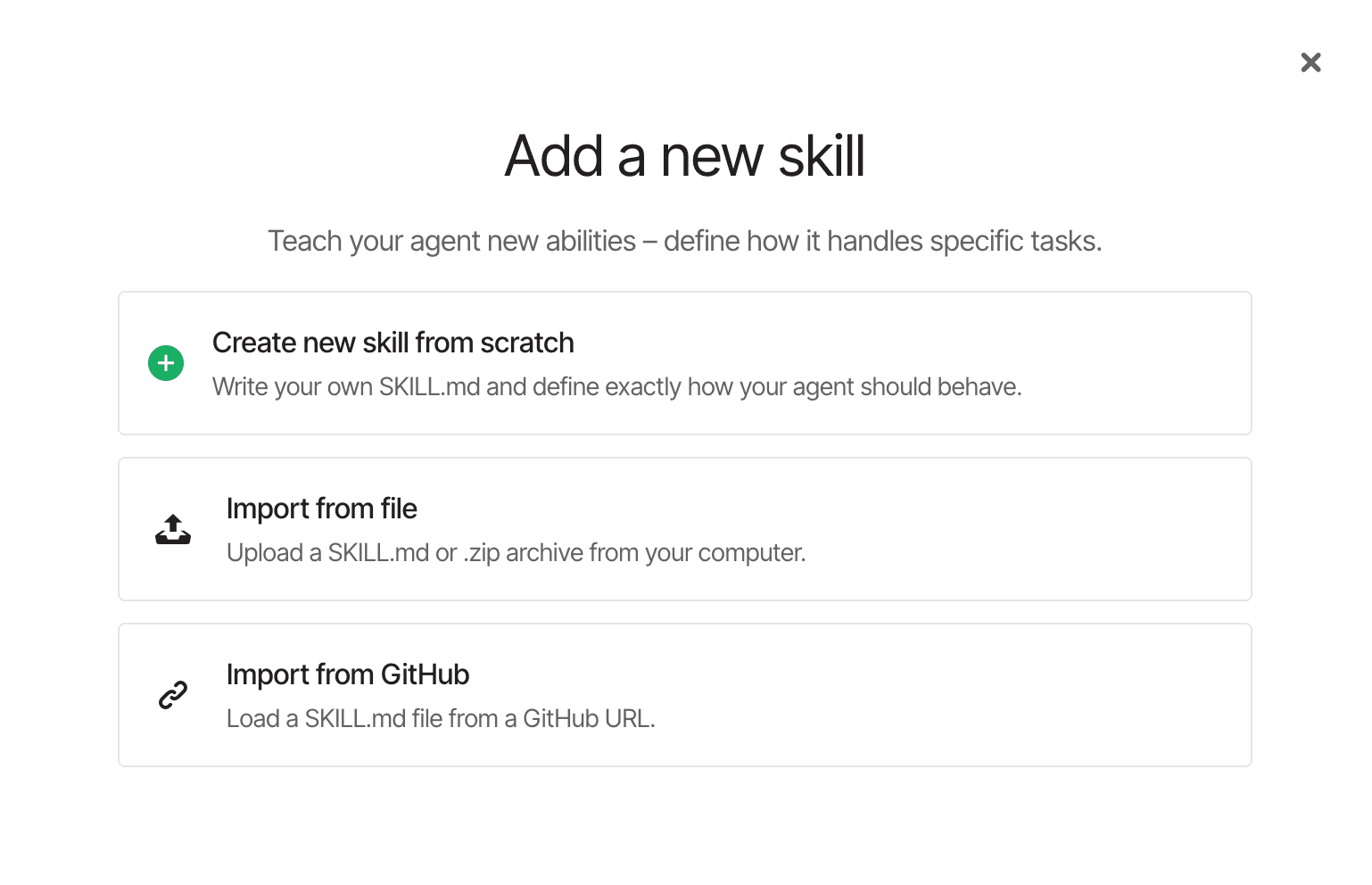
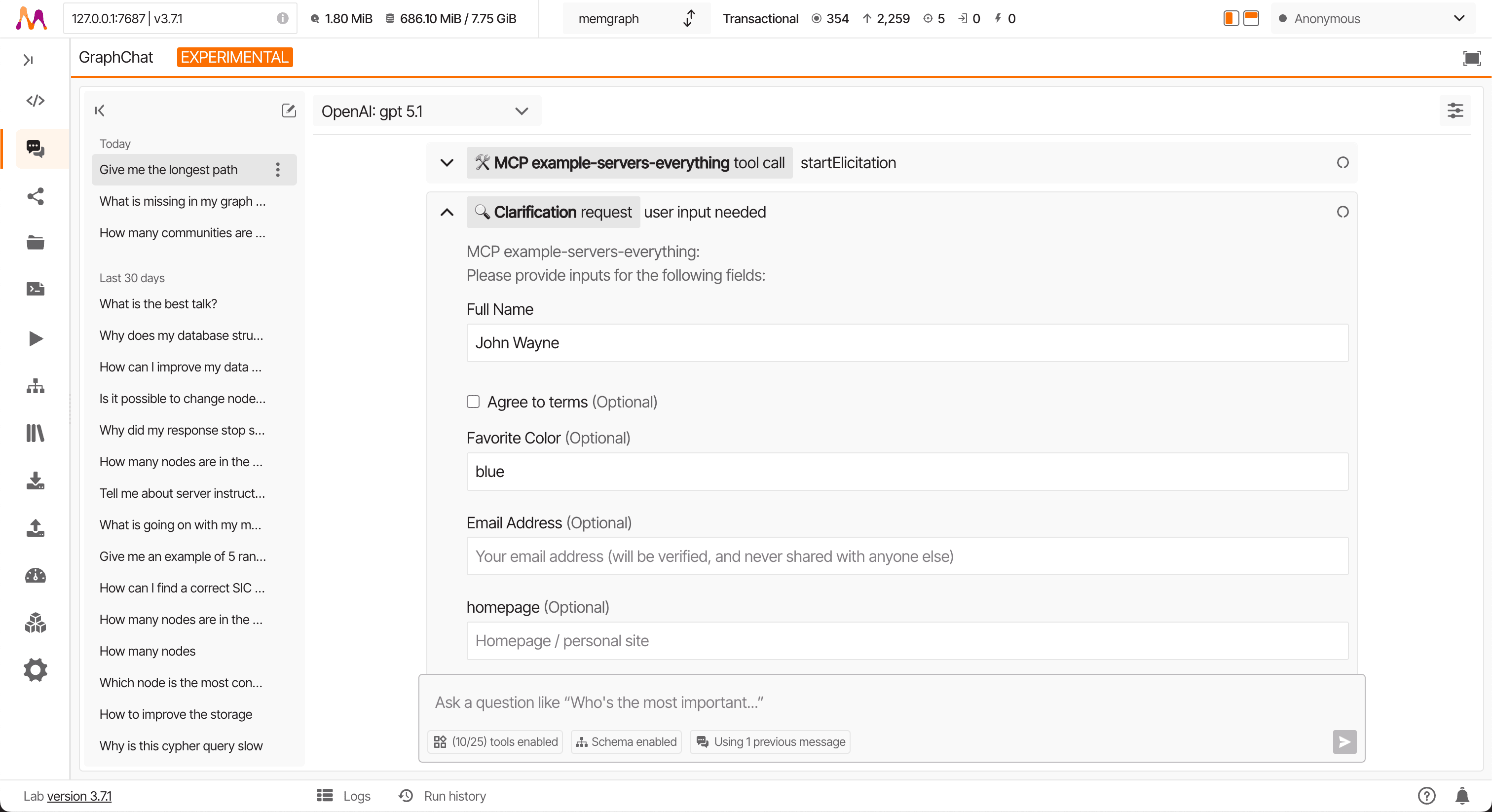
Starting with Lab 3.9, GraphChat agents support skills - reusable instructions and context that guide agent behavior for specific tasks. Skills help agents follow best practices, avoid common mistakes, and produce more consistent results.
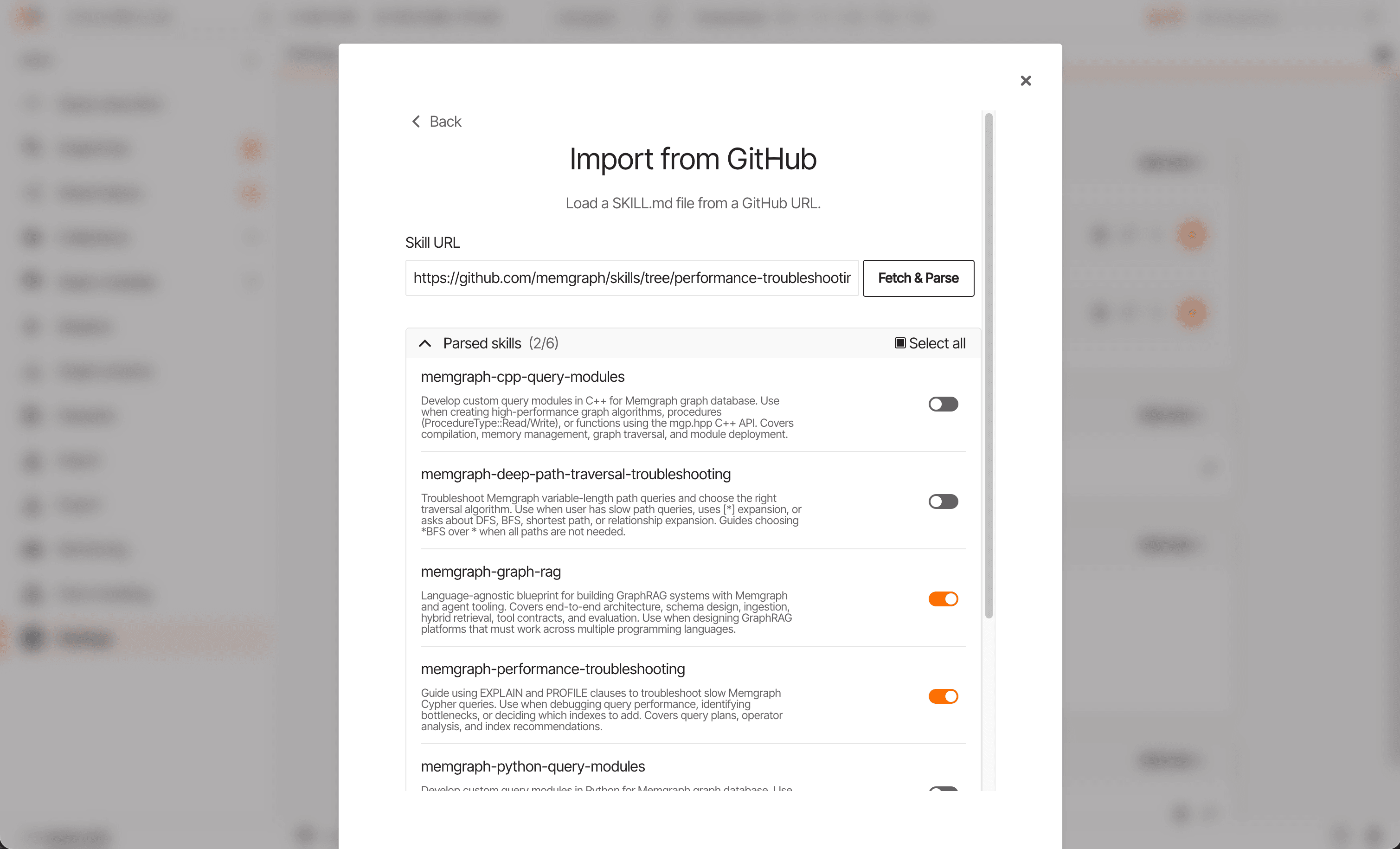
You can create a new skill directly in Lab, import one from a local directory or ZIP file, or load it from a public GitHub URL. When importing from a remote source, the skill content and all its references are fetched once at creation time - there is no ongoing sync with the original source. You can edit the skill content at any time after import.
Skill structure
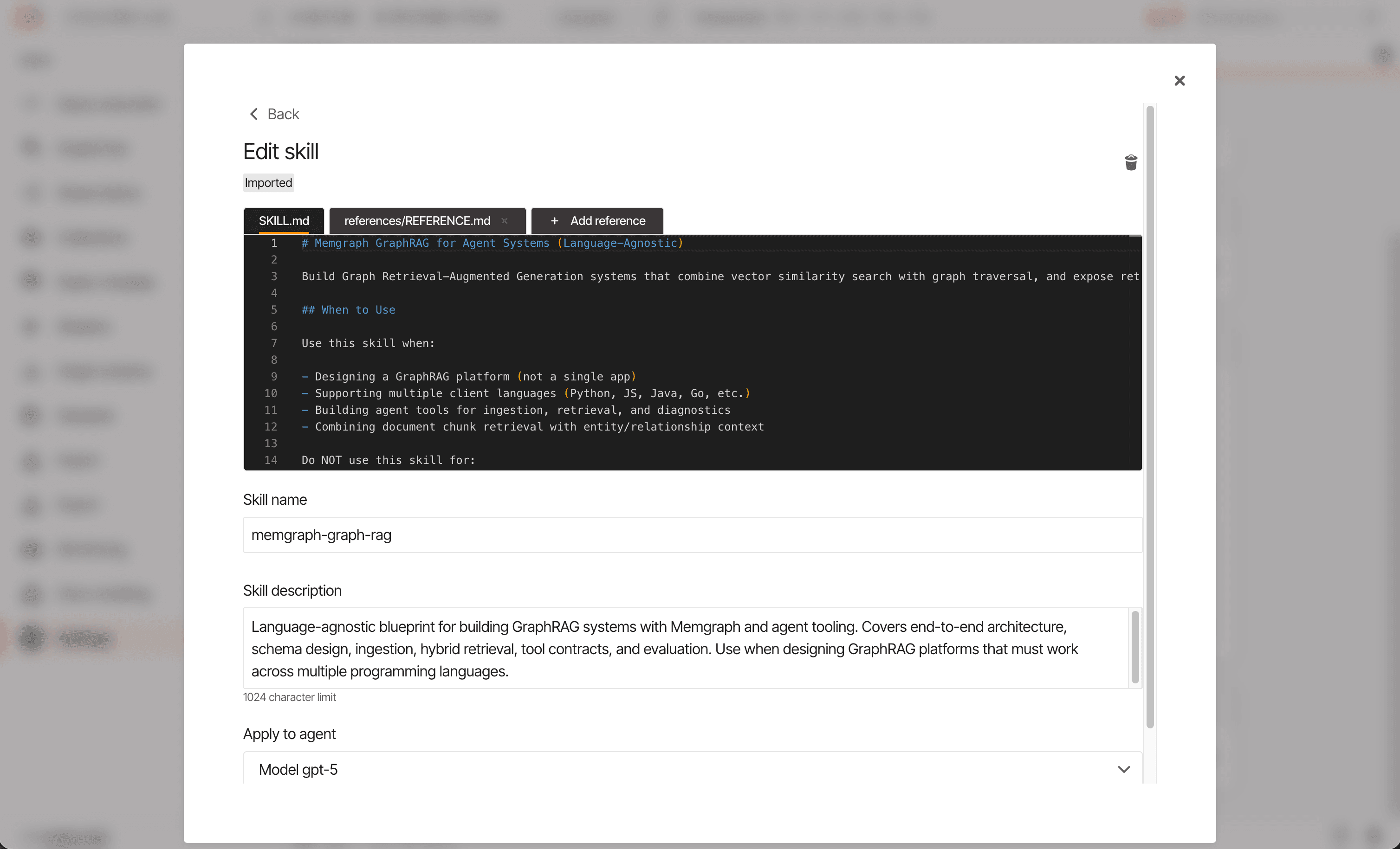
When creating or editing a skill, you define the following:
- Name - A unique identifier for the skill.
- Description - A short explanation of what the skill does and when it should be triggered. This description helps the agent decide whether to use the skill based on your question.
- Content (SKILL.md) - The main body of the skill containing detailed instructions, guidelines, or context for the agent.
- References - Additional files or resources that the skill can
reference. You can link to these references within
SKILL.mdso the agent knows how to fetch and use them when needed.
At the bottom of the skill edit screen, you can select which agent to attach the skill to. You can also manage skill attachments from the agent configuration.
How agents use skills
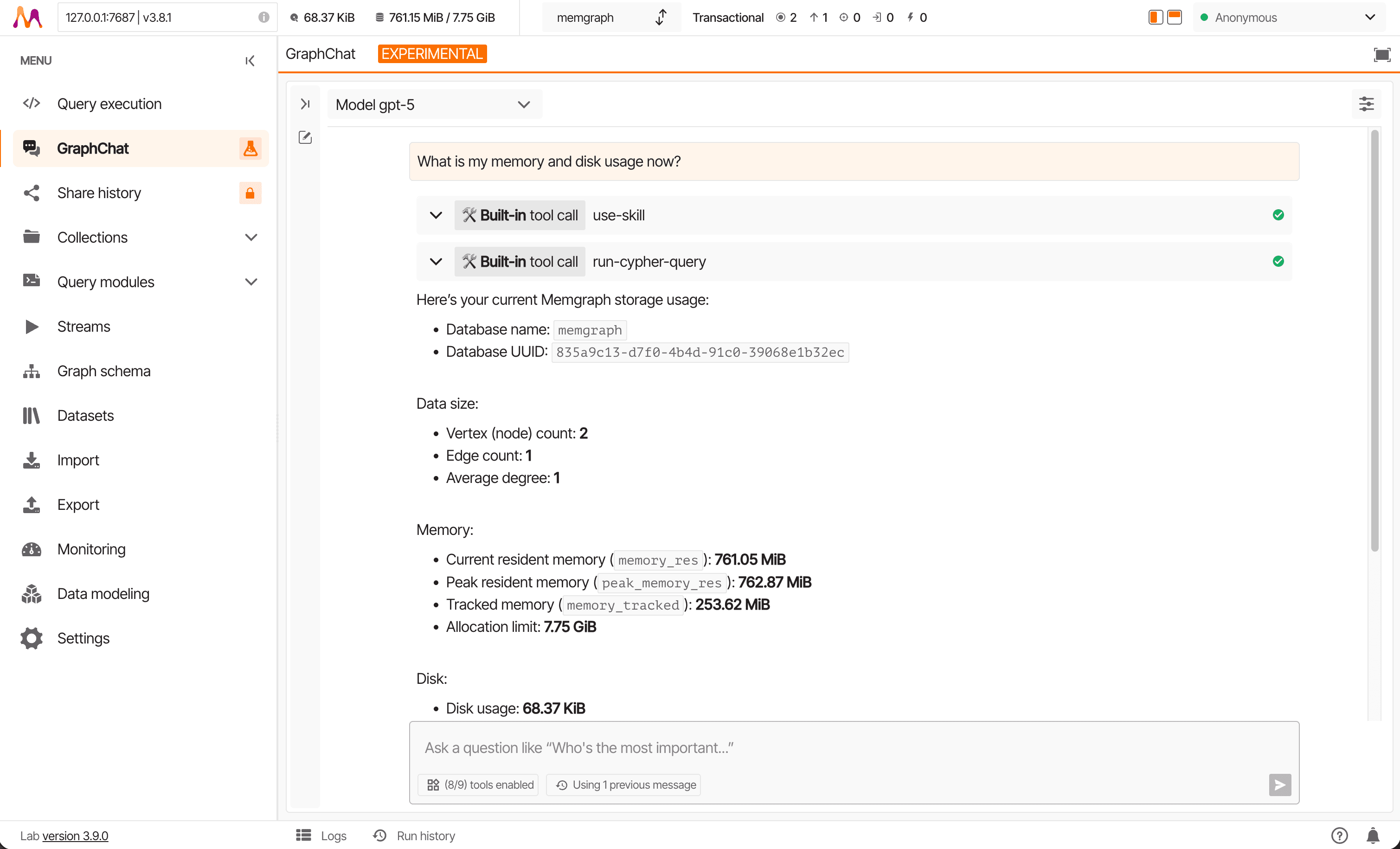
GraphChat agents load only the skill name and description in the initial prompt. This keeps the context lightweight while still allowing the agent to recognize when a skill is relevant.
When a skill is triggered, you’ll see the built-in use-skill tool
appear in the GraphChat messages. The agent may load the main SKILL.md
file or fetch additional skill references to enrich its context before
responding.
Evolving skills with agents
Skills can grow and improve over time through your conversations with agents. If you have an interesting conversation where the agent learned something valuable - such as best practices, corrections, or insights - you can ask the agent to update the skill.
Simply instruct the agent to save the findings or improve the skill based on the conversation. The agent will create a change request proposing updates to the skill content. You can review the proposed changes and choose to approve or decline them.
This approach lets you evolve your skills collaboratively with agents as you use them, capturing knowledge and refinements from real interactions.
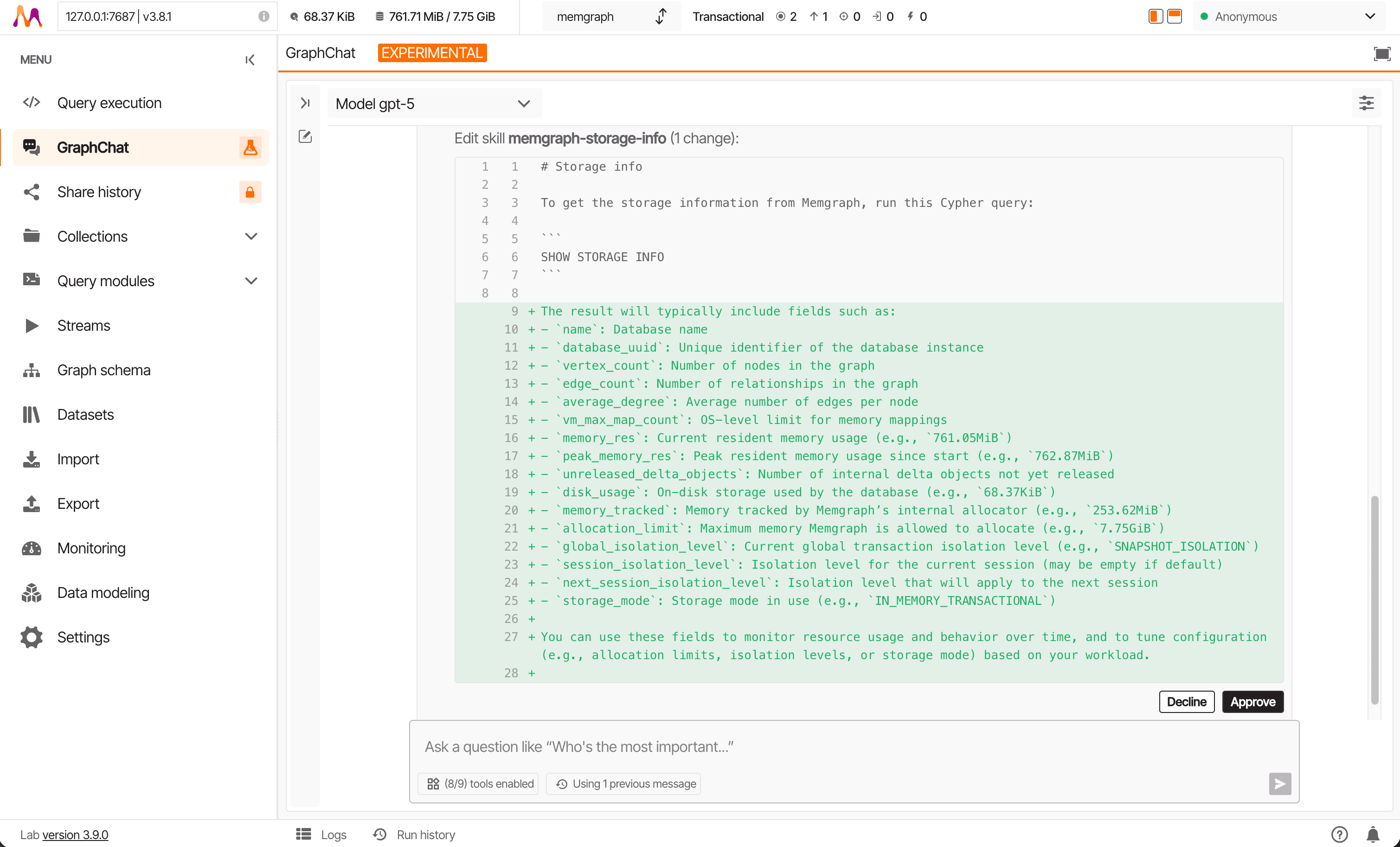
Chat experience
With GraphChat, you can chat with the agent just like you would in a typical text-based interface. The conversation is real time—you see updates and responses streamed live, as they happen. When the model responds with markdown content containing charts or images, GraphChat renders them directly in the chat, so you can visualize data, insights, or explanations right inside your conversation.
MCP Tools: Transparency and insights
When tools are used—either built-in or provided by your connected MCP servers—you always know which ones are being called by the agent. For every tool invocation, you can review the exact arguments sent and the responses received. If the tool is a built-in one (like Memgraph database tools), the underlying Cypher query is shown as well, allowing you to try, edit, or rerun it yourself.
Multiple tools can be called in a single LLM response, and you can follow along in real time.
Prompts
Prompts are pre-built templates provided by your connected MCP servers that can be quickly used within GraphChat.
These templates make it faster and easier to form questions or run common operations by reusing best-practice prompt patterns, which saves time and helps ensure your inquiries are more precise and effective.
You can select a prompt from the available list and fill in the
required details - or quickly open the prompt selection by
typing / in the question input box—allowing you to get
meaningful results with minimal effort.
Resources
Resources are additional supporting information or snippets contributed by your connected MCP servers. They can enrich the context of your questions and provide useful background or predefined inputs for the GraphChat agent.
You can browse available resources from your MCP servers and add them directly to your question, helping the agent generate even more relevant and accurate answers by leveraging specific examples, documentation, or configuration fragments.
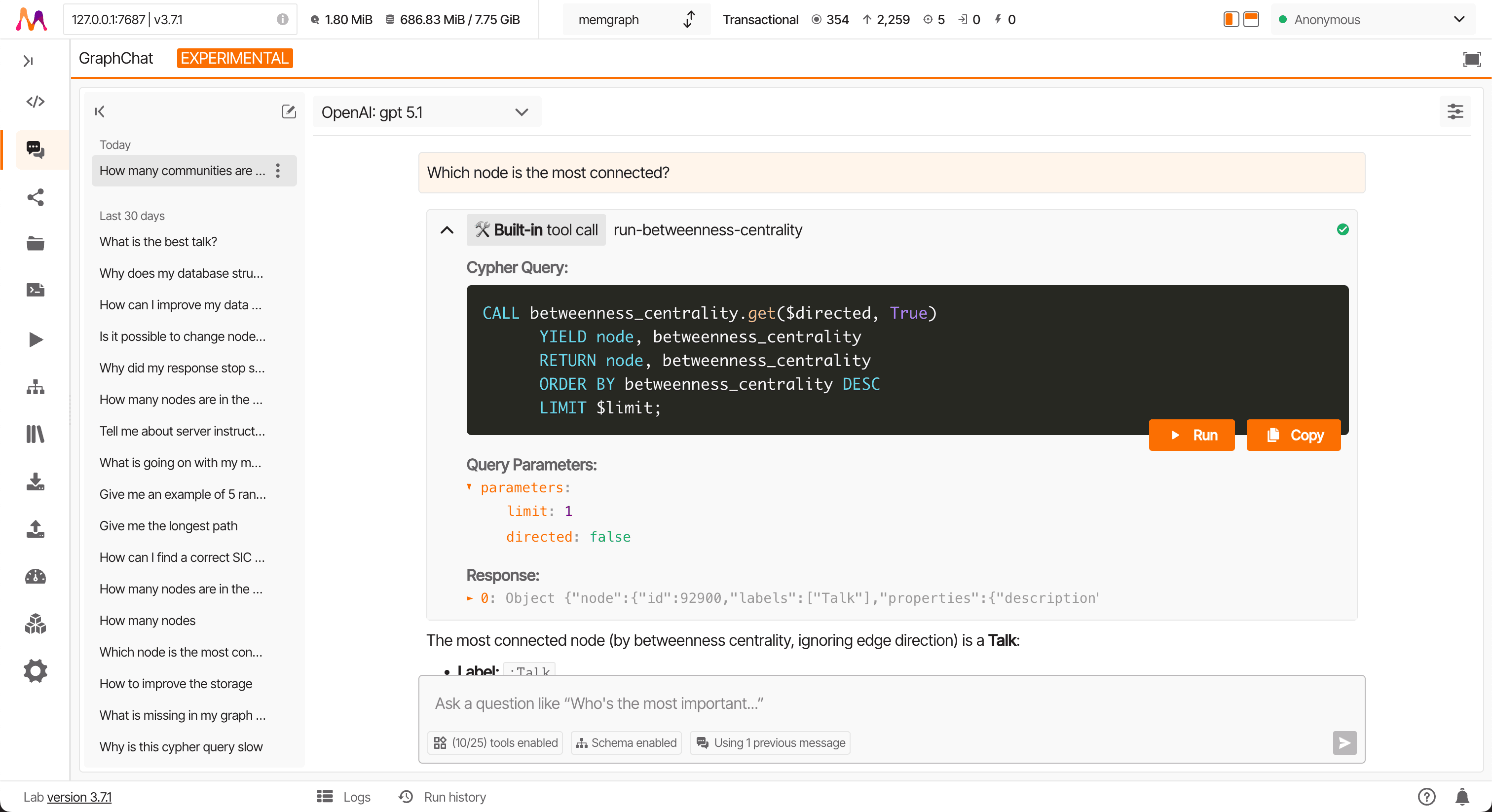
Sampling (LLM interaction requests)
Some MCP servers support sampling requests, which let an external server trigger a custom LLM prompt on your behalf. In GraphChat, if your connected MCP server supports sampling, these requests will appear in the conversation UI for your approval before they are processed. This means you stay in control, and your LLM connection can be harnessed for advanced agent tasks, safely and transparently.
From Lab 3.8 onward, you can enable automatic approvals for sampling requests to streamline your workflow. When a sampling request appears, you will see options to:
- Approve in this conversation: This approves all future sampling requests from that MCP server only within the current conversation thread.
- Approve for this agent: This approves any future sampling request from that MCP server across all conversation threads associated with the current agent.
If you choose to approve for an agent, you can always revisit the agent’s settings later to turn automatic approval for sampling requests on or off for each connected MCP server. This gives you granular control, letting you change permissions at any time to suit your preferences and security requirements.
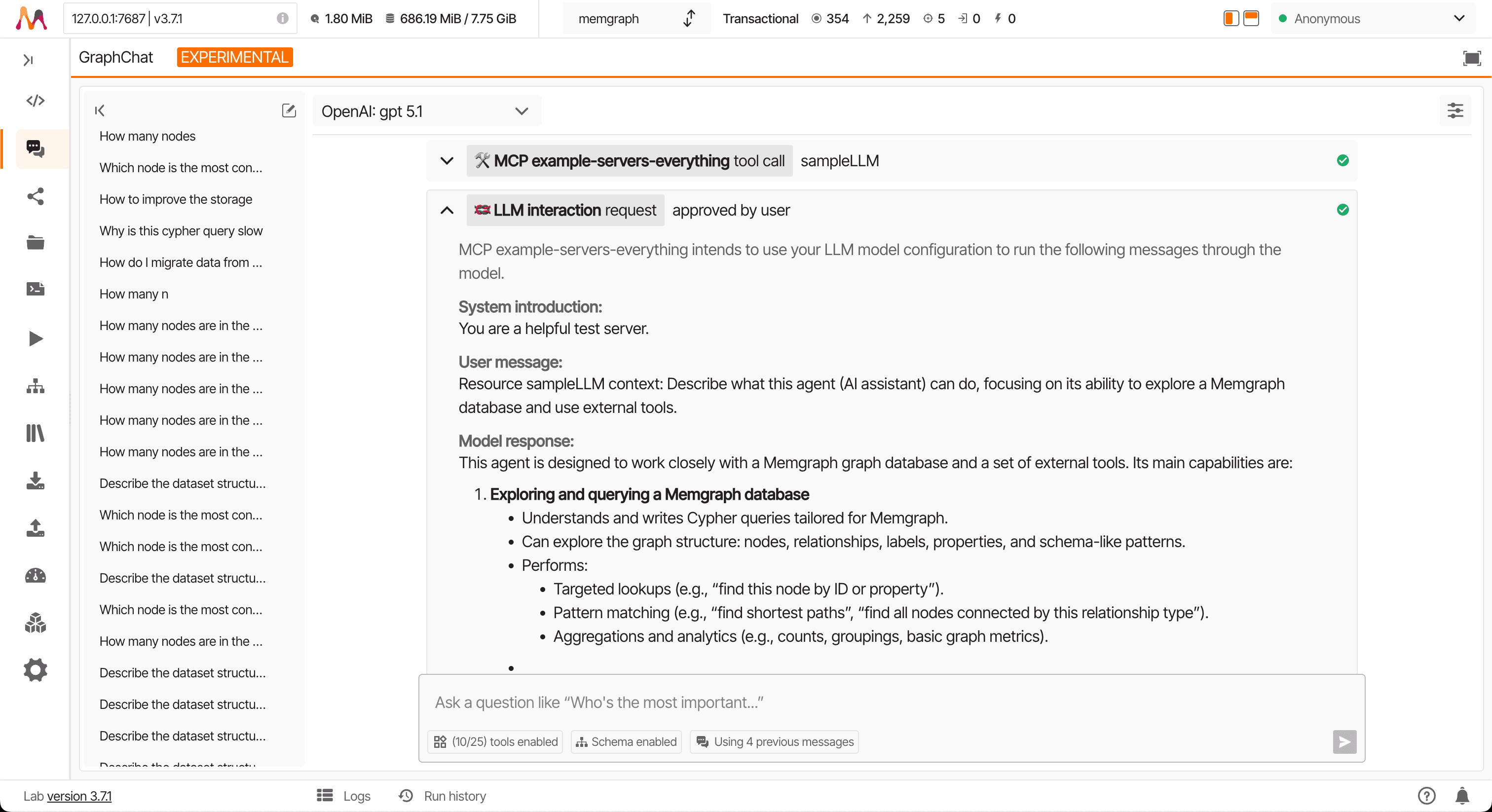
Elicitation (Clarification requests)
If an MPC server needs more information to proceed, it can initiate an elicitation (clarification) request. You’ll see these prompts clearly in the chat interface, allowing you to provide additional information or decline the request if you prefer. The entire process is interactive and visible in the UI, so you know exactly what’s happening at each step.
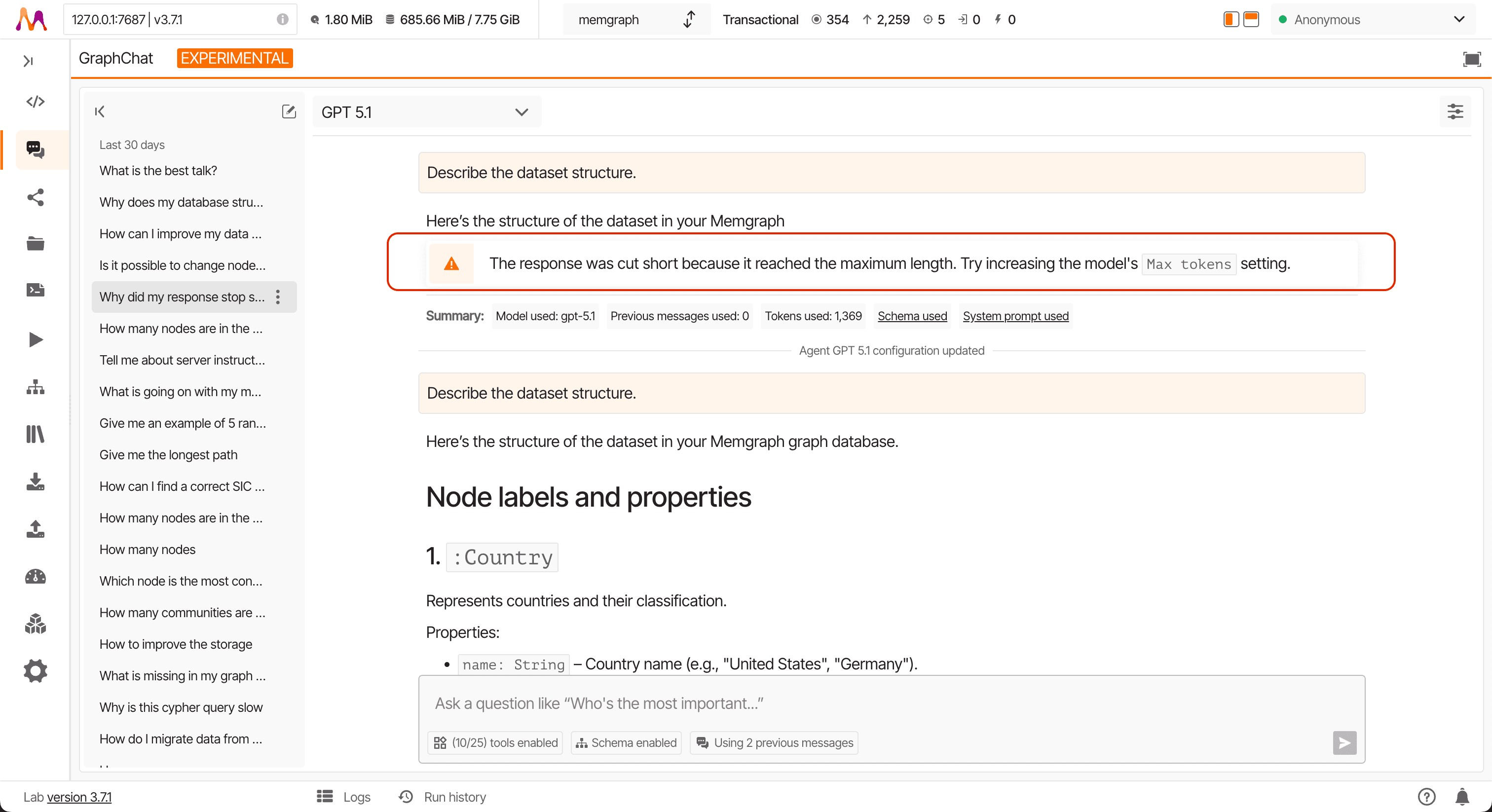
Unexpectedly Ended Responses
Sometimes, a response might end before it’s complete. This can happen for several reasons:
- The model may stop its response due to policy, safety restraints, or internal limitations.
- The model might reach the maximum number of output tokens (default: 1024 - you can increase this in the Max Tokens setting in model configuration).
- User-initiated interruptions or network/app issues can also cause incomplete responses.
In these cases, it will be clear in the conversation UI that the reply is incomplete or cut off. If it was due to tokens running out, simply increase the configured Max Tokens and retry. For other interruptions, just continue the chat to pick up where things left off—no information is lost, and you stay in control over each exchange.
Explore response details
After receiving an answer, you can expand each tool, elicitation and sampling request to inspect what the LLM did behind the scenes.
You can also explore:
- Number of previous exchanges, tokens, and tools used
- Schema used – Click to visualize the included schema if a schema was generated for the prompt by Lab
- System prompt used – Click to view the full prompt context sent to the LLM