SSL encryption
Memgraph uses SSL (Secure Sockets Layer) protocol for establishing an authenticated and encrypted connection to a database instance.
Achieving a secure connection is a three-step process that requires
- Owning a SSL certificate
- Configuring the server
- Enabling SSL connection
For any errors that might come up, check out the Help center page on errors.
SSL certificate
SSL certificate is a pair of .pem documents issued by self-signing, or by a
Certification Authority. Memgraph contains a self-signed testing certificate
(cert.pem and key.pem) located at /etc/memgraph/ssl/.
If you are using Docker and want to use your own certificates, you need to copy them into a Docker container in order to utilize them.
Configure the server
To use a certain SSL certificate, change the configuration file to include the
--bolt-cert-file and --bolt-key-file flags and set them to the location of
the certification files.
If you are using the Memgraph self-signed certificate, set the configuration flags to:
--bolt-cert-file=/etc/memgraph/ssl/cert.pem
--bolt-key-file=/etc/memgraph/ssl/key.pem
When using Linux, be sure that the user memgraph has permissions (400) to
access the files.
Once the flags are included in the configuration, you cannot establish an insecure connection.
Enable SSL connection
To enable SSL connection in Memgraph Lab, switch to Connect Manually view and turn the SSL on.
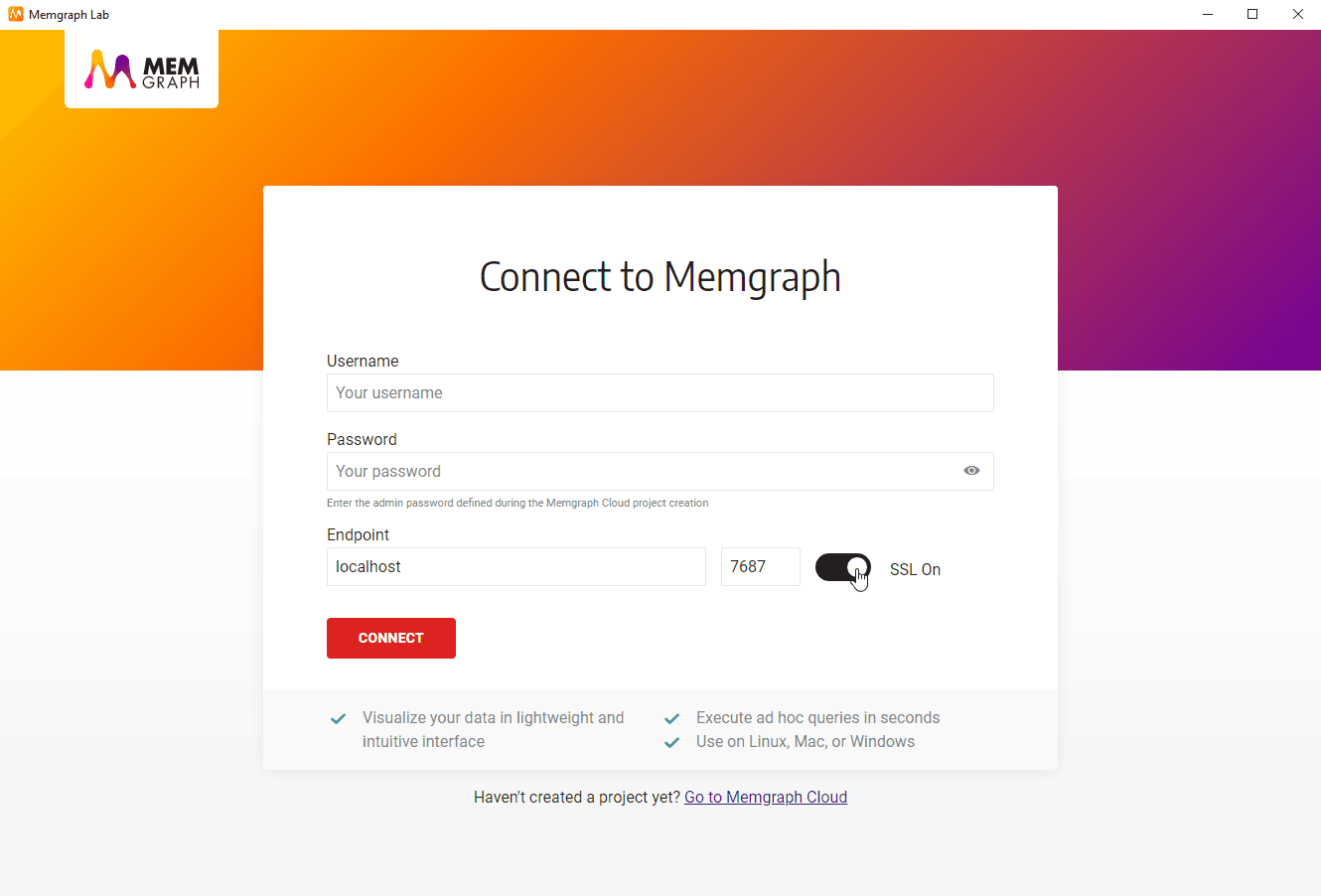
When Memgraph Lab is connected to Memgraph database using SSL encryption, logs cannot be viewed inside the Lab.
Reload SSL certificates at runtime
You can rotate SSL certificates without restarting Memgraph by using the
RELOAD BOLT_SERVER TLS Cypher command. This is useful in production
environments where certificate rotation is required (e.g., Let’s Encrypt
renewals or compliance requirements) and downtime is not acceptable.
To reload SSL certificates:
- Replace the certificate and key files on disk (at the paths originally
configured with
--bolt-cert-fileand--bolt-key-file). - Run the following command from any connected client:
RELOAD BOLT_SERVER TLS;After a successful reload:
- New connections will use the updated certificate.
- Existing connections continue using the previous certificate until they disconnect.
If the reload fails (e.g., due to an invalid certificate or missing file), the existing SSL configuration remains active and an error is returned. The server continues to operate normally.
The RELOAD BOLT_SERVER TLS command cannot be executed inside an explicit
(multi-command) transaction.
Running RELOAD BOLT_SERVER TLS on a Memgraph instance that was started
without SSL enabled will return an error.
Breaking change in Memgraph 3.11: RELOAD BOLT_SERVER TLS now requires the
RELOAD_TLS
privilege.
Previously no privilege was needed. If you use authorization, grant RELOAD_TLS
to the users or roles that perform certificate rotation:
GRANT RELOAD_TLS TO user;.
Reload intra-cluster TLS certificates
In a high-availability cluster, the internal
communication between instances can be secured with
intra-cluster TLS.
To rotate those certificates at runtime, replace the certificate and key files
on disk (at the paths configured with --cluster-cert-file,
--cluster-key-file, and --cluster-ca-file) and run:
RELOAD INTRA_CLUSTER TLS;RELOAD INTRA_CLUSTER TLS reloads both the client and server connections, so
new connections will start using the new certificates.
Like RELOAD BOLT_SERVER TLS, this command requires the RELOAD_TLS privilege
and cannot be executed inside an explicit (multi-command) transaction.
How to set up SSL encryption
Memgraph uses SSL (Secure Sockets Layer) protocol for establishing an authenticated and encrypted connection to a database instance.
Docker
Create a container
Create a Docker container with the --bolt-cert-file and --bolt-key-file arguments pointing to /etc/memgraph/ssl/cert.pem and /etc/memgraph/ssl/key.pem respectively.
docker create --name memgraph_container -p 7687:7687 -p 7444:7444 memgraph/memgraph-mage --bolt-cert-file=/etc/memgraph/ssl/cert.pem --bolt-key-file=/etc/memgraph/ssl/key.pem Copy the SSL certificate files
docker cp cert.pem memgraph_container:/etc/memgraph/ssl/cert.pem
docker cp key.pem memgraph_container:/etc/memgraph/ssl/key.pem
Start the container
docker start memgraph_containerEnable SSL connection
Choose the preferred way to connect to Memgraph and first enable SSL connection.
Linux
-
Run Memgraph.
-
Open the configuration file available at
/etc/memgraph/memgraph.conf. -
Change the configuration file to include the following configuration flags:
--bolt-cert-file=<path> --bolt-key-file=<path> -
Set the flags to the paths of your SSL certificate, or use Memgraph self-signed certificates (
cert.pemandkey.pem) located at/etc/memgraph/ssl/:--bolt-cert-file=/etc/memgraph/ssl/cert.pem --bolt-key-file=/etc/memgraph/ssl/key.pem -
Restart Memgraph.
-
Open Memgraph Lab and switch to Connect Manually view, turn the SSL On and connect.
-
If you are using pymgclient to query the database with Python, add
sslmode=mgclient.MG_SSLMODE_REQUIREto themgclient.connect