Memgraph Agent
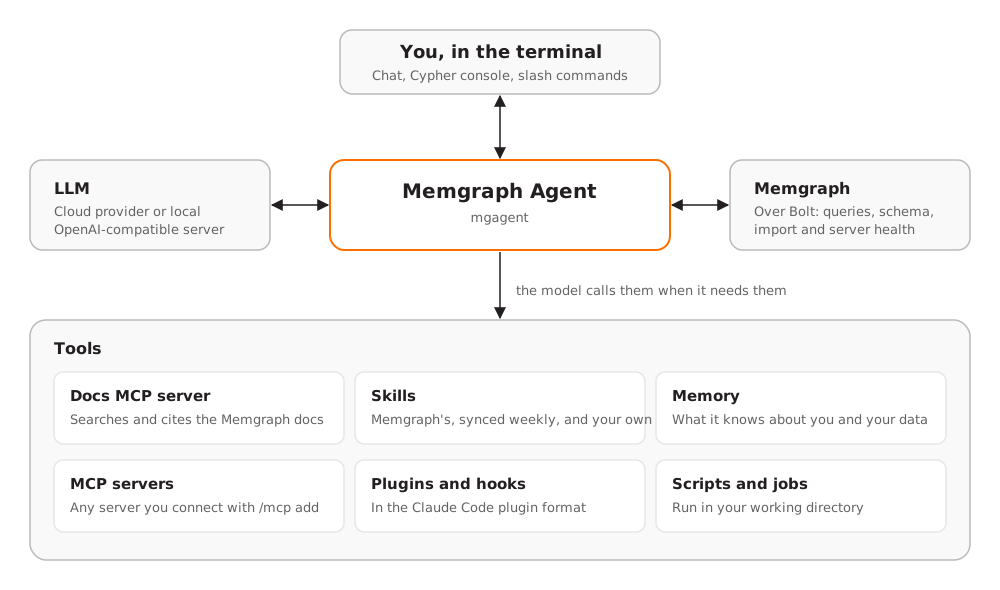
Memgraph Agent (mgagent) is an AI assistant for Memgraph that runs in your
terminal. It connects to a Memgraph instance and to a large language model
(LLM) of your choice, then answers questions about your graph, writes and runs
Cypher, imports data, diagnoses query and connection problems and searches the
Memgraph documentation.
By default, every write query, script and file write is shown to you for approval before it runs (see Approvals and permissions).
This page covers how to install and start Memgraph Agent, its features, and its command-line options, configuration and telemetry.
Requirements
- A running Memgraph instance, or Docker or a Linux machine where Memgraph Agent can start one for you (see Start Memgraph).
- An API key for a cloud LLM provider, or a local server with an OpenAI-compatible API such as Ollama, llama.cpp, LM Studio or vLLM. See LLM providers for the full list.
- Linux, macOS 12 or later, or Windows, on x86_64 or aarch64 (ARM64).
- To let the assistant run Python scripts, Python 3. On Debian or Ubuntu,
also the
python3-venvpackage oruv(see Scripts and background jobs).
Install Memgraph Agent
Memgraph Agent is a single executable called mgagent. To install it, run the
install script for your operating system:
curl -sSf https://install.memgraph.com/mgagent | shInstall a package
To install a specific package instead, download it yourself. Each release is
published at https://download.memgraph.com/memgraph-agent/v<version>/, with
one folder per platform that holds its installers. The commands below install
version 0.2.0.
Download the .deb package and install it:
curl -fLO https://download.memgraph.com/memgraph-agent/v0.2.0/linux-x86_64/memgraph-agent-v0.2.0-linux-x86_64.deb
sudo apt install ./memgraph-agent-v0.2.0-linux-x86_64.deb
On an aarch64 (ARM64) machine, replace every x86_64 in both commands with
aarch64. The package installs mgagent in /usr/bin.
On Linux, macOS or Windows, check that the install worked:
mgagent --versionEach download folder has a SHA256SUMS file. To verify a download on Linux,
download that file into the same directory and run:
sha256sum --check --ignore-missing SHA256SUMSAccept the license agreement
Memgraph Agent is proprietary software. Most installers show its license agreement and ask you to accept it before they install anything:
| Installer | How it asks |
|---|---|
.deb | A question during apt install or dpkg -i. An upgrade asks again only if the agreement changed, and sudo apt purge memgraph-agent forgets your answer. |
.run | Shows the agreement, then asks yes or no. |
.msi | A license page with an I accept box. |
.pkg | A license page in Installer. sudo installer -pkg doesn’t show it, and installing accepts the agreement. |
.rpm and Docker | Doesn’t ask. Installing or running Memgraph Agent accepts the agreement. |
For an unattended install, such as in CI, accept the agreement in advance with
MGAGENT_ACCEPT_EULA=yes. Put the variable after sudo, because sudo drops
the rest of your environment:
sudo MGAGENT_ACCEPT_EULA=yes apt install ./memgraph-agent-v0.2.0-linux-x86_64.deb
sudo MGAGENT_ACCEPT_EULA=yes sh memgraph-agent-v0.2.0-linux-x86_64.run
On Windows, pass it to a silent install:
msiexec /i memgraph-agent-v0.2.0-windows-x64.msi /qn MGAGENT_ACCEPT_EULA=yesWithout the variable, the installer refuses a .deb install with no one to
answer (including with DEBIAN_FRONTEND=noninteractive), a .run install with
no terminal, and a silent .msi install.
Every package except the .pkg installs a copy of the agreement: /usr/share/doc/memgraph-agent/EULA.txt on Linux and in
Docker, and EULA.txt next to mgagent.exe on Windows.
Uninstall Memgraph Agent
How you remove Memgraph Agent depends on how you installed it:
| Installed with | Remove with |
|---|---|
.deb | sudo apt remove memgraph-agent |
.rpm | sudo dnf remove memgraph-agent |
.run | sudo mgagent-uninstall |
.pkg | sudo mgagent-uninstall |
.msi | Settings > Apps > Installed apps > Memgraph Agent > Uninstall |
| Docker | docker rmi memgraph/mgagent:latest, and docker volume rm mgagent to delete its settings, conversations and memory |
Apart from the Docker volume, none of these remove your settings, conversations and memory in ~/.mgagent
(or MGAGENT_HOME). To remove everything, including the API keys stored in
config.json, delete that folder too.
Start Memgraph Agent
Run mgagent to open the interactive terminal interface:
mgagentOn the first run, a setup wizard asks for an LLM provider and its API key or
server URL, and selects that provider’s default model. Run /setup at any
time to add another provider. If one of these environment variables is set,
the wizard is skipped and that provider is used:
| Variable | Provider |
|---|---|
ANTHROPIC_API_KEY (and optionally ANTHROPIC_BASE_URL) | Anthropic |
OPENAI_API_KEY (and optionally OPENAI_BASE_URL) | OpenAI |
GEMINI_API_KEY or GOOGLE_API_KEY | Google Gemini |
DEEPSEEK_API_KEY | DeepSeek |
XAI_API_KEY | xAI |
MISTRAL_API_KEY | Mistral |
AWS_BEARER_TOKEN_BEDROCK (and optionally AWS_REGION or AWS_DEFAULT_REGION; the default is us-east-1) | Amazon Bedrock, with a Bedrock API key |
QWENCLOUD_API_KEY or DASHSCOPE_API_KEY (and optionally QWENCLOUD_BASE_URL for a region’s host) | Qwen Cloud |
OLLAMA_HOST or OLLAMA_BASE_URL | Ollama |
A key read from an environment variable is used for that run only and is never written to disk. With none of them set, Memgraph Agent also looks for Ollama, llama.cpp, LM Studio or vLLM on its default port on this machine, and uses the first one it finds.
Connect to Memgraph
Inside Memgraph Agent, connect with the /connect command. Without a URI, it
connects to bolt://localhost:7687:
/connect bolt://localhost:7687To connect with a username and password, add them as flags:
/connect bolt://db.example.com:7687 -u memgraph -p YOUR_PASSWORD -d analytics --name prod-u is the username, -p the password, -d the
database to use, and --name saves the
connection as prod. Replace YOUR_PASSWORD with the user’s password.
Connections are saved, and the last one used becomes the default, so the next
start connects on its own.
/connections lists the saved connections, and /connect prod switches to
one by name.
You can also connect when you start Memgraph Agent:
mgagent -c bolt://localhost:7687 -u memgraph --password YOUR_PASSWORDThe same options work when you start Memgraph Agent (see Command-line
options), but the password is --password, because
-p runs headless mode.
Memgraph Agent checks every 15 seconds that the server still answers. If it stops answering, the status bar shows it as disconnected, and Memgraph Agent reconnects on its own once the server is back.
Start Memgraph
If no Memgraph is running yet, run /start-memgraph. Memgraph Agent checks
what the machine has and offers only the options that apply:
- Run Memgraph in Docker, with the
memgraph/memgraphimage, or restart a stopped Memgraph container. - Install Memgraph as a Linux package on Debian, Ubuntu or a RHEL- or Fedora-family distribution, or start one that is already installed.
- Connect to an existing instance, which fills in
/connectfor you.
Before it starts a new instance, the assistant asks which settings you want: the MAGE graph algorithms, a username and password, TLS on Bolt, the analytical storage mode, a memory limit, schema info or Memgraph Lab. It shows every command for approval, then connects once Memgraph answers.
To skip the questions, describe what you want:
/start-memgraph docker with TLS and a password.
Installing a Linux package needs root. Unless sudo works without a password,
the assistant gives you the script to run yourself.
Ask a question
Type a question and press Enter:
Which labels have the most nodes?The assistant reads the schema, writes a query, runs it, and answers with the
result and the Cypher it used. Type /help to list the commands.
These keys work at the prompt:
Escstops a response, andTabcompletes a slash command.↑and↓recall earlier input, also from earlier sessions.Ctrl+Rsearches that history backward, as in a shell. Type part of a line to find the newest line that contains it.Ctrl+Rsteps to an older match,Ctrl+Sto a newer one,Enterruns the line shown,Tabputs it on the prompt to edit andEsccancels.Ctrl+Lclears the screen. What was on it stays in the terminal’s scrollback.Ctrl+Ctwice quits.
Features
Memgraph Agent works through tools the model calls: tools for Memgraph, the documentation, scripts, skills, memory, any Model Context Protocol (MCP) servers you connect and any plugins and hooks you install.
Natural language querying
Ask a question in plain language. The assistant:
- Reads the schema: labels, relationship types, properties, indexes and
constraints. It uses
SHOW SCHEMA INFOwhen it’s enabled, and metadata or sampling when it isn’t, so it never guesses a name. - Writes a Cypher query and runs it. Read queries run at once. Queries that
change data or the schema (
CREATE,MERGE,SET,DELETE,LOAD CSV, index and constraint changes and most procedure calls) show you the exact query and wait for your approval. Spotting writes is best effort, so for a connection that can’t change data, use a read-only Memgraph user (see Approvals and permissions). - Answers with the result and the Cypher it used.
You can also ask it to:
- Explain why a query is slow. It reads the query plan
with
EXPLAINandPROFILE, points out full scans and suggests the index that removes them. - Report on the server: version, storage mode, node and relationship counts, memory use and indexes.
- Run a long query in the background, as a job with a one-hour timeout that it checks on.
Cypher console
Press Ctrl+G (or run /cypher) to turn the prompt into a Cypher console.
Enter runs the line on the current connection without an approval prompt,
and the model doesn’t see the query or its result.
Tabcompletes keywords, functions and variables, and the labels, relationship types, property keys and procedures of the connected database./param NAME VALUEsets a$parameterfor console queries; the value is JSON, or text when it isn’t valid JSON.Ctrl+Oopens the latest result to scroll through, andnandpstep through earlier results.Ctrl+Yattaches the latest result to your next message, so the assistant sees it. Press it again to attach every result, and a third time for none./consoledocks the console in a pane beside the prompt, so results stay in view next to the conversation./console bottomputs the pane above the prompt,/console fullover most of the screen, and/console offcloses it.mgagent --console, or/focus consolefor every session, starts in the console. The console needs no LLM, so you can use Memgraph Agent as a Cypher shell.
Esc on an empty line, or Ctrl+G again, returns to the chat.
Data import
/import PATH_OR_DESCRIPTIONasks the assistant to inspect a source, propose a graph model, create the indexes and load the data. It asks you to choose the graph model before it writes anything.- The import follows Memgraph’s import skill: it creates indexes first, asks before switching to analytical storage mode and checks the counts afterwards.
- The assistant uses Memgraph’s server-side loaders:
LOAD CSV,LOAD JSONLandLOAD PARQUET. - Data that needs transforming first, or lives in another database, goes through a Python or shell script the assistant writes and you approve.
- Type
@to mention a file. The prompt offers the closest matches from the working directory, and the assistant reads the file only if it needs to.
If an import is slow or runs out of memory, see Import best practices for indexes, analytical storage mode and batched parallel loading. For each source format, see Data migration.
Troubleshooting
- When a connection fails, the assistant tests DNS resolution, the TCP port and the Bolt handshake separately, and names the step that failed.
- After
/connectfails, your next message carries the details: the URI, the username, whether a password was given (never the password itself), the error and the check results. Ask “why can’t I connect?” and the assistant starts from them. - Common query errors come back with a hint, and the assistant checks the documentation instead of guessing at syntax.
- If Memgraph isn’t running yet, see Start Memgraph.
Documentation search
The assistant searches and reads the Memgraph documentation, and cites the
pages it used. The Memgraph Docs MCP
server is configured on the first
run and needs no key. /docs QUERY searches the documentation without
calling the model.
Scripts and background jobs
The assistant can write a bash script (PowerShell on Windows) or a Python
script and run it in your working directory, after you approve it. Scripts run
as background jobs: /jobs lists them with their status and exit code,
/jobs output ID shows a job’s output and /jobs cancel ID stops it.
Python scripts run in a virtual environment, and packages are never installed
into the system Python. A script inside a project uses the project’s
environment (an active VIRTUAL_ENV, or a .venv or venv folder), and
installing packages into it needs a separate approval.
Other scripts use an environment that Memgraph Agent creates in
~/.mgagent/python/venv on first use. On Debian and Ubuntu, install the venv
module, or uv, before the first run. Without
it, a script that needs no packages runs with the system Python, and one that
needs packages fails:
sudo apt install python3-venvSkills
Skills are folders with a SKILL.md file that teach the assistant a
procedure. The assistant loads a skill when it applies. Memgraph Agent reads
skills from three places, in this order of precedence:
.mgagent/skillsin the working directory, for a project’s procedures.~/.mgagent/skills, for your own.~/.mgagent/memgraph-skills, Memgraph’s Agent Skills, updated weekly from memgraph/skills.
/skills lists them, /skills show NAME shows one, and /skills sync updates
the Agent Skills now. When the assistant works out a repeatable procedure,
it offers to save it as a skill, after your approval.
Memory
The assistant keeps one document of what it knows about you and your data
across conversations, and reads it at the start of every turn. Every change is
a revision: /memory history lists them, /memory revert NUMBER undoes one,
and /memory off turns memory off.
MCP servers
Connect any MCP server with /mcp add, over
streamable HTTP, server-sent events (SSE) or standard input and output:
/mcp add internal https://mcp.example.com/mcp --header x-team=data
/mcp add files npx -y @modelcontextprotocol/server-filesystem DATA_DIRECTORY
Replace DATA_DIRECTORY with a directory that exists: the filesystem server
exits at once if it doesn’t. The first form connects to a URL (add --sse for
SSE, --token for a bearer token); the second runs a command and passes the
remaining arguments to it.
/mcp list lists the servers, /mcp refresh NAME reconnects one, and
/mcp remove NAME removes one. To change a saved server’s URL or command,
remove it and add it again. If a command-based server fails to start, the
error ends with the last lines it wrote to standard error, which usually say
why.
The model finds a server’s tools when it needs them, so connecting more servers doesn’t make every request larger. A tool that isn’t marked read-only asks for approval before it runs.
Plugins
Memgraph Agent installs plugins in the Claude Code plugin format, so most plugins written for Claude Code work unchanged. A plugin is a folder that can hold skills, slash commands, command hooks and MCP servers:
my-plugin/
  .claude-plugin/plugin.json   name, version and description
  skills/NAME/SKILL.md         skills
  commands/NAME.md             slash commands
  hooks/hooks.json             command hooks
  .mcp.json                    MCP servers
Install a plugin from a folder or a Git repository. An installed plugin is enabled, and its skills, commands, hooks and MCP servers are available while it stays enabled:
/plugin install https://github.com/ORGANIZATION/PLUGIN.git
/plugin install ./PLUGIN_FOLDER
/plugin list
Replace ORGANIZATION/PLUGIN with the plugin’s repository and PLUGIN_FOLDER
with the path to a plugin folder. Installing from Git needs git. To install
one plugin from a repository that holds several, add its folder after the URL:
/plugin install https://github.com/ORGANIZATION/PLUGINS.git plugins/PLUGIN/plugin show NAME shows what a plugin contains, and
/plugin enable NAME, /plugin disable NAME and /plugin remove NAME manage
it. To try a plugin for one run without installing it, start with
mgagent --plugin-dir ./my-plugin.
Plugins live in ~/.mgagent/plugins (yours) and .mgagent/plugins in the
working directory (the project’s). A plugin found there stays off until you
enable it, because its hooks run commands on your machine.
A plugin command’s Markdown file is the prompt it sends: $ARGUMENTS is
replaced by what you typed after the command, and $1, $2 by its words.
The command is /PLUGIN:NAME, or /NAME when no other command has that name.
Hooks
Hooks are shell commands that run at points in a conversation. They come
from enabled plugins and from "hooks" in config.json, in Claude Code’s
hooks format:
{
  "hooks": {
    "PreToolUse": [
      {
        "matcher": "Bash",
        "hooks": [{ "type": "command", "command": "~/bin/check-script.sh", "timeout": 30 }]
      }
    ]
  }
}
Each hook runs in the working directory and gets the event as JSON on
standard input. The CLAUDE_PROJECT_DIR environment variable holds the working
directory, and a plugin’s hooks find the plugin’s folder in
CLAUDE_PLUGIN_ROOT. A hook times out after 60 seconds unless it sets
timeout.
How the hook ends decides what happens:
- Exit code
0: the turn continues. To decide, print a JSON decision on standard output. - Exit code
2: the hook blocks the prompt or tool call, with its standard error as the reason. - Any other exit code, or a timeout: the hook failed. Memgraph Agent shows
a notice and the turn continues, so a failed
PreToolUsehook doesn’t stop the tool call.
Memgraph Agent reads hooks when it starts; after you change them, run
/plugin reload. /hooks lists the hooks in force and any it skipped. Only
command hooks run.
| Event | When it runs | What the hook can do |
|---|---|---|
SessionStart | The first prompt of a conversation | Add context the model gets on every turn. |
UserPromptSubmit | Each prompt, before it’s saved | Block the prompt, or add context for that turn. |
PreToolUse | Before a tool call, and before you’re asked to approve it | Refuse the call, stop tool use for the turn, rewrite its input or add a note. |
PostToolUse | After a tool call | Add a note the model reads with the result. |
Stop | When the model is about to finish | Send it back to work with a reason. |
PreCompact | Before the conversation is summarized | Observe only. |
Notification | When Memgraph Agent waits for your approval | Observe only. |
SessionEnd | When Memgraph Agent exits | Observe only. |
A hook can refuse a tool call but never approve one: the call still goes through Memgraph Agent’s own approvals.
A matcher is a regular expression over tool names. Three Memgraph Agent tools
also match the name of their Claude Code counterpart: jobs__run-shell as
Bash, jobs__read-file as Read and jobs__write-file as Write. Other
tools match by their Memgraph Agent name, such as memgraph__run-cypher, and
an external MCP tool also as mcp__SERVER__TOOL. /tools lists the names.
LLM providers
Memgraph Agent works with these providers:
- Cloud: Anthropic, OpenAI, Azure OpenAI, Google Gemini, DeepSeek, Amazon Bedrock, xAI, Mistral and Qwen Cloud.
- Local: any server with an OpenAI-compatible API, with built-in defaults for Ollama, llama.cpp, LM Studio and vLLM.
Add a provider with /provider add, then pick a model:
/provider add openai-compatible http://localhost:11434/v1 --id ollama
/models
/models opens a list of the provider’s models to pick from; type to filter
it. /models list prints the list instead, and /model NAME selects a model
by name. /provider alone lists the configured providers and the provider
types.
For Amazon Bedrock, add a Bedrock API key:
/provider add amazon-bedrock YOUR_BEDROCK_API_KEY --region eu-west-1Replace YOUR_BEDROCK_API_KEY with your key. Without --region, Memgraph
Agent uses AWS_REGION, then AWS_DEFAULT_REGION, then us-east-1. A
short-term Bedrock key works only in the region it was created in.
Qwen Cloud has no /provider add type. Add it in the setup wizard (/setup),
which asks for your key and your region’s host, or set QWENCLOUD_API_KEY (see
Start Memgraph Agent).
The status bar shows how full the model’s context window is, and /context
shows what fills it. When the conversation reaches 70% of the window, its older
part is summarized; /compact does that on demand. If a local server doesn’t
report its context window, set it with /model --context 32k.
Each answer shows its input, output, cached and reasoning tokens and, for a
cloud model, an estimated cost. /status shows the totals for the
conversation and the session.
After each reply, the prompt suggests your likely next message. When the reply
doesn’t suggest one, Memgraph Agent asks the model in a short background
request, which a paid API charges for. /suggest off turns that request off.
Model settings
/tune opens a panel with the selected model’s settings: reasoning and its
effort, maximum output tokens, web search, temperature, top-p, top-k, min-p and
the frequency, presence and repetition penalties. Settings the provider or
model doesn’t accept are dimmed and not sent. You can also change them from the
prompt:
/tune show
/tune temperature 0.2
/tune max-tokens 16k
/tune temperature default
/tune reset
/tune show lists every setting and its value, default puts one setting back
to its default, and /tune reset puts them all back. Memgraph Agent saves the
settings per provider and model in config.json, so switching models and back
keeps them.
Approvals and permissions
When the assistant wants to run a write query, a script, a file write or an MCP tool that isn’t read-only, it shows what it will run and waits:
yruns it once.aruns it and allows the same kind of call from now on (all Memgraph writes, that tool or that MCP server), also in later sessions.ndeclines it. The assistant explains what it wanted and asks how to proceed.
/permissions yolo turns approval prompts off for every tool, and
/permissions ask (the default) turns them back on. Use yolo only on a
database you can lose.
Telling read queries and read-only tools apart from writes is best effort, so a write can run without an approval prompt. For a connection that truly can’t change data, connect as a Memgraph user whose role has only read privileges. See role-based access control (Enterprise) and the query privileges reference.
Headless mode
mgagent -p runs one question without the interactive interface, for scripts
and pipelines. The answer goes to standard output, and tool calls go to
standard error, with the last lines of output of any script that failed:
mgagent -c bolt://localhost:7687 -p "which labels have the most nodes?"Without -y, a headless run declines every write, script and other call that
needs approval, whatever you approved in the interactive interface. With
-y, it approves them all:
mgagent -p "create an index on Person(id)" -yAdd --json to get the answer as JSON.
The exit code tells a script how the run ended:
0: the run finished.1: the run failed, for example because-ccouldn’t connect or a hook blocked the prompt.2: the run didn’t start, for example because of an unknown option or no configured model.3: the turn ran out of steps (maxIterations). The answer the model wraps up with is still printed, and standard error says it’s unfinished.
Hook messages also go to standard error.
Conversations
Conversations are saved locally. /threads lists recent ones, /resume
continues one, and /new starts a new one. When you quit, Memgraph Agent
prints the command that resumes the conversation, such as mgagent --resume ID.
Command-line options
mgagent [options] [prompt]A prompt given without an option is sent as the first message of an interactive session.
| Option | Description |
|---|---|
-p, --print <prompt> | Run one turn without the interactive interface (see Headless mode). |
--json | With --print: print the answer as JSON. |
-y, --yes | With --print: approve every tool call. |
-v, --verbose | With --print: show tool calls and token usage and, for a cloud model, an estimated cost. |
-c, --connect <uri> | Connect to Memgraph on start, such as bolt://localhost:7687. |
-u, --user <name> | Memgraph username. |
--password <secret> | Memgraph password. |
-d, --database <name> | Memgraph database. |
-r, --resume [id] | Continue a saved conversation. Without an ID, pick one from a list. |
-m, --model <name> | Use this model, and save it as the selected model. |
--prefill <text> | Put text in the input box without sending it. |
--console | Start in the Cypher console, and run the prompt there as a query. |
--theme <dark|light|ansi|auto> | Color theme: Memgraph’s dark or light theme, the terminal’s own colors, or auto to follow the terminal background. The default is auto. |
--cwd <dir> | Working directory for scripts and project skills. |
--plugin-dir <dir> | Load and enable a plugin from a folder for this run. Repeat it for more plugins. |
--no-sync | Skip the weekly update of the Agent Skills and the MCP servers Memgraph configures. |
--telemetry-enabled <true|false> | Send usage statistics to Memgraph for this run. The default is true. |
-h, --help | Show the help. |
-V, --version | Show the version. |
Configuration
Memgraph Agent keeps its files in ~/.mgagent/, or in the directory set by the
MGAGENT_HOME environment variable:
| Path | Holds |
|---|---|
config.json | Providers, the selected model, model settings, Memgraph connections, MCP servers, enabled plugins, hooks, permissions, theme and other settings. |
mgagent.db | Conversations and the memory revisions, in SQLite. |
history.jsonl | The prompt’s input history, kept across sessions. |
skills/ | Your skills. |
memgraph-skills/ | Memgraph’s Agent Skills. |
plugins/ | Installed plugins, one folder each. |
python/venv/ | The virtual environment for the assistant’s Python scripts. |
mgagent.log | The log. |
Two settings have no command and are set in config.json:
instructions: text added to the assistant’s instructions, such as how you like answers or what your data means.maxIterations: how many model and tool steps one turn may take. The default is 100.
API keys entered in the setup wizard or with /provider add, and the
passwords of saved Memgraph connections, are stored in config.json in plain
text. On Linux and macOS, only your user can read the file. To keep a key off disk, pass it through an
environment variable.
Telemetry
Like Memgraph, Memgraph Agent sends anonymous usage statistics to Memgraph. A report goes out a minute after start, every hour and at shutdown, and holds:
- A machine ID, a random ID for the run and the Memgraph Agent version.
- The operating system, architecture, CPU count and memory.
- The providers and models used, token usage, the slash commands run, and the names of the skills loaded and the MCP servers configured.
- How often each tool ran and succeeded, how you answered approval prompts, and how many Cypher queries ran.
- For each connected Memgraph instance: its version, edition, storage mode, replication role, node and relationship counts, and whether it runs locally.
It never sends queries, data, prompts, answers, file paths, hostnames, usernames, keys or tokens.
To turn telemetry off:
- For one run, start with
mgagent --telemetry-enabled false. - For every run in an environment, set
MGAGENT_TELEMETRY=off. - Permanently, set
"isTelemetryEnabled": falseinconfig.json.
The command-line option overrides the other two.
Report an issue
To report a bug or ask for a feature, open an issue in the Memgraph GitHub repository. Include:
- The output of
mgagent --version, how you installed Memgraph Agent and your operating system. - The LLM provider and model, and the Memgraph version if you were connected.
- What you asked or ran, what happened and what you expected.
- The relevant lines from the log,
~/.mgagent/mgagent.log.
Remove API keys, passwords and private data before you share the log or a conversation.